

{{ }}) anywhere a field accepts templates, and Refold substitutes the resolved value when the workflow runs.
Use this page when you need the exact syntax for a variable path, helper, or expression form. For the conceptual model of where workflow data comes from, see Data Variables.
Where templates work
Templates resolve in three places:- Workflow node fields: any input that accepts text or JSON in a node configuration.
- API Proxy configuration: request URLs, headers, query parameters, and body.
- Authorization and developer settings: auth config fields that need per-account values at runtime.
Anatomy of an expression
A template is a single variable path wrapped in{{ }}. The path uses dotted access to walk into objects and arrays.
| Part | Meaning |
|---|---|
{{ and }} | Delimiters that mark the start and end of a template expression. |
namespace | The variable root, such as node, instance_meta_data, or linked_account. |
subpath | A property name on the namespace. For node data, this is usually body or response:<index>. |
.0, .1, .n | Numeric path segments index into an array element. |
.field | Dotted access to a property on the current value. |
{{ node.4.body }} and {{node.4.body}} resolve the same way.
Workflow node variables
Every workflow node returns a response object once it runs. Downstream nodes reference that data with thenode namespace.
Reference a node response
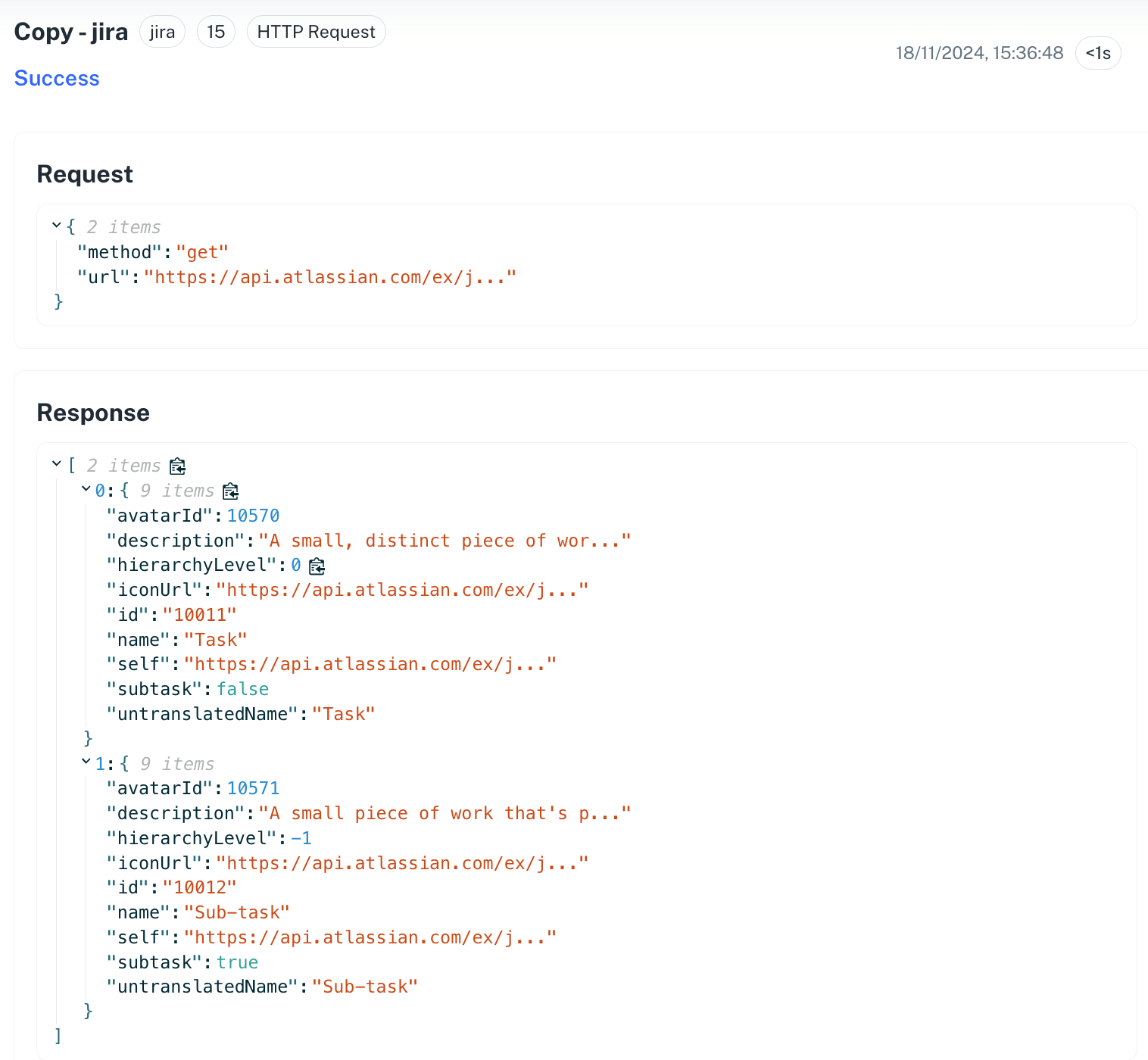
Use one of these forms:bodyresolves to the entire response object of the referenced node.- A numeric segment (
.0,.1) indexes into an array.{{node.15.body.0}}is the first item in node 15’s response array. - The
response:<index>.<field>form is shorthand for accessing a field on an indexed response item.{{node.15.response:0.name}}returns thenamefield of the first item from node 15.
Insert variables from a test run
If you have already run a node, you can pick its response fields from a UI picker instead of typing the path by hand. Test-run variables appear in the format<node_number>.<response_field>, for example 4.id.
Open the field that needs a variable
Click inside the input field on the node where you want the value to land.
Open the Insert Variable modal and pick the source node
Switch to the Nodes tab. Click the down arrow next to a node to expand its response. Each leaf is a usable variable. For example, an
id returned when a project was created shows as 4.id.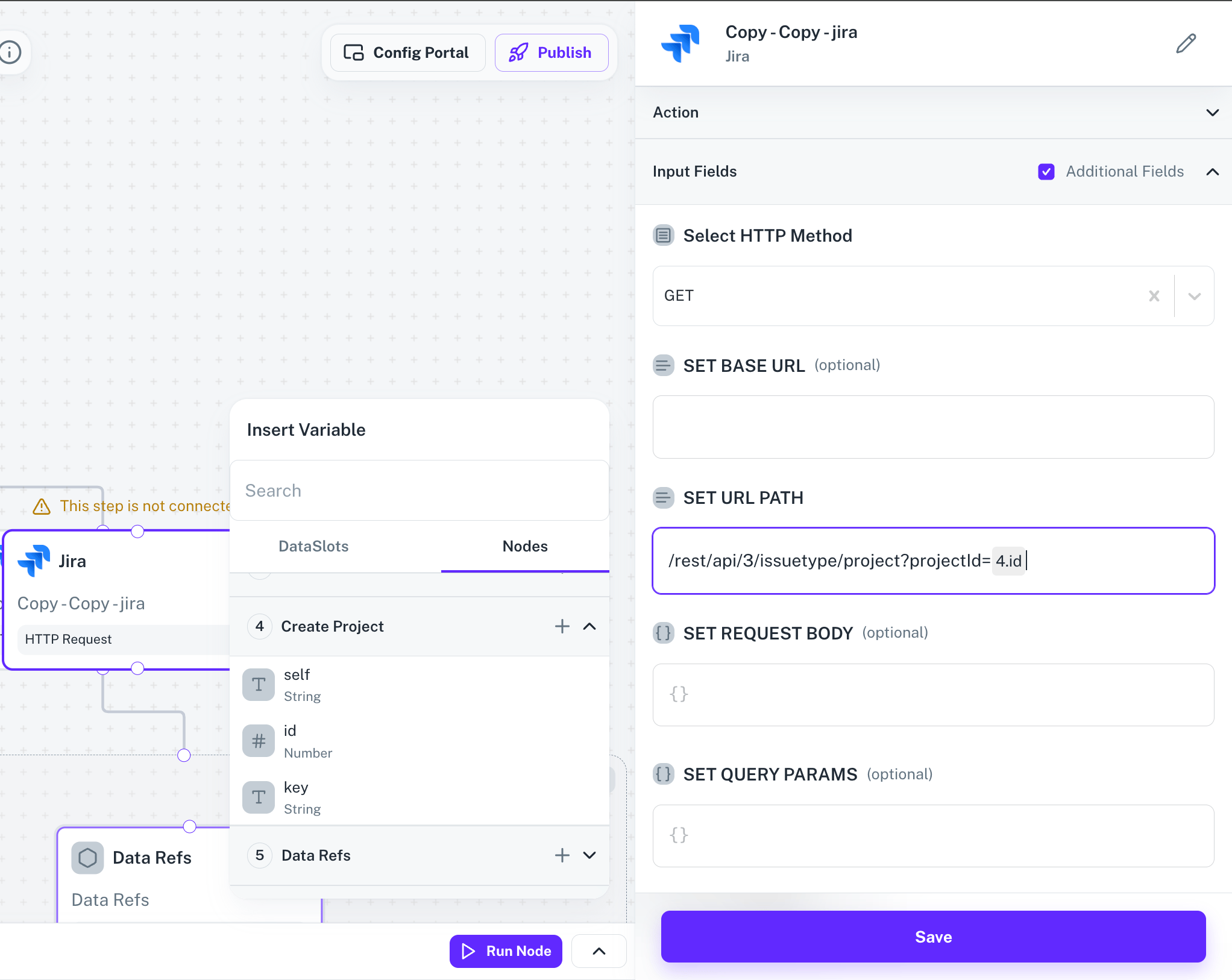
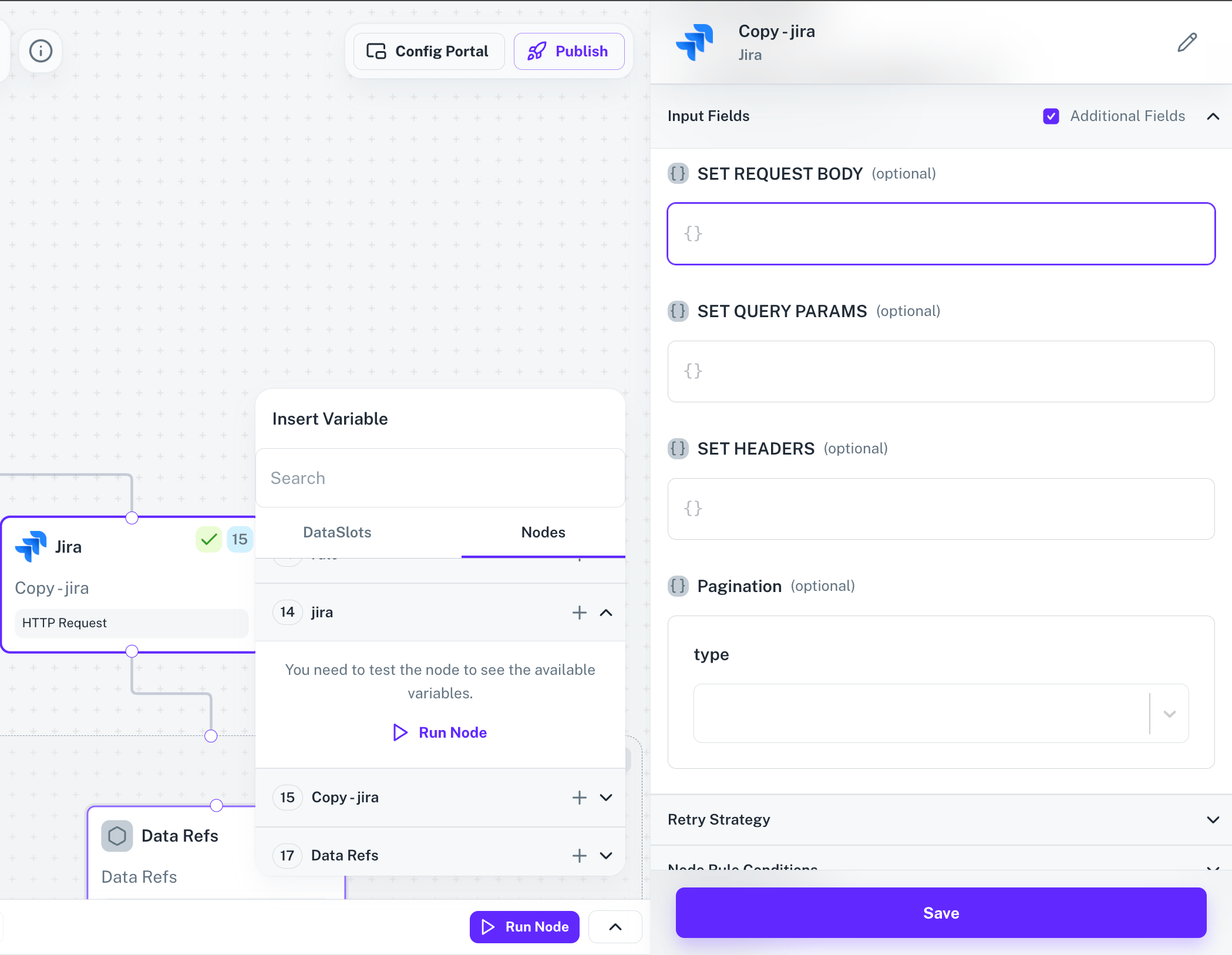
Test-run variables require the workflow testing prerequisites to be satisfied. See Workflow Testing for the full setup.
Instance metadata variables
An instance is a single workflow execution run. Use theinstance_meta_data namespace to read run-level metadata inside any workflow or API proxy.
| Variable | Template | Description |
|---|---|---|
| Event name | {{instance_meta_data.event_name}} | The name of the event that triggered this execution. |
| Config id | {{instance_meta_data.config_id}} | Identifier of the application configuration this instance runs under. |
| Instance created time | {{instance_meta_data.instance_created_time}} | Start time of the execution (when the instance was created). |
| Instance id | {{instance_meta_data.instance_id}} | Unique identifier of this execution instance. |
Linked account variables
Linked account variables carry data tied to the end-user’s linked account through the platform at runtime. Use them when a workflow or API proxy needs values that vary per linked account, such as a tenant id or an OAuth access token.| Variable | Template | Description |
|---|---|---|
| User-defined field (UDF) | {{linked_account.udf.<UDF property>}} | A custom property stored on the linked account. |
| Authorization credential | {{linked_account.auth_credentials.<auth properties>}} | A credential field returned by the auth flow, such as an access token or workspace id. |
<UDF property> or <auth properties> with the exact key as defined in your linked account schema or auth config.
Combine templates with literal text
You can mix templates with surrounding text in a single field. Each template resolves independently and the rest of the string passes through unchanged.Escaping and special characters
A few rules apply when typing templates:- Curly braces are only treated as a template when paired as
{{and}}. A single brace is rendered literally. - Whitespace inside
{{ ... }}is ignored, so spacing is purely a style choice. - Property names that contain dots or special characters are not supported through dotted access. If your JSON has such keys, restructure the upstream response (for example, via a Transform node) before referencing it.
Debugging template errors
When a template does not resolve to the value you expect, work through this checklist:The variable resolves to an empty value
The variable resolves to an empty value
Confirm the source node actually ran in your test execution and produced a response. If the Insert Variable modal shows no fields under a node, click Run node to generate them.
The path used to work but now fails
The path used to work but now fails
The response structure of the source node has likely changed. Re-run the source node with the new input payload so the new fields are picked up, then re-insert the variable.
A node returns an array but you need one item
A node returns an array but you need one item
Use a numeric index segment, such as
{{node.15.body.0}} for the first item, or {{node.15.response:0.name}} to read a field from the first item directly.The template prints literally instead of resolving
The template prints literally instead of resolving
Check the braces. You need exactly two opening braces and two closing braces. Mixed
{ and {{ will not be interpreted as a template.A linked account credential is missing
A linked account credential is missing
Open the linked account and confirm the credential key in
auth_credentials matches what you reference in {{linked_account.auth_credentials.<key>}}. Key names are case-sensitive.Next steps
Data Variables
Conceptual overview of where data comes from inside a workflow and how variables flow between nodes.
Workflow Testing
Run a node in isolation so its response is available as test-run variables in the Insert Variable modal.
Transform node
Reshape an upstream response before referencing it downstream.
API Proxy
Use templates inside proxy requests to pass linked account credentials and instance metadata to external APIs.