

{{ }} syntax. Every variable picker shows the value’s data type below its name, so you know what shape of data you are about to inject.
Three categories of variables share the same templating syntax:
- Workflow data: the triggering event’s payload, outputs from upstream nodes, and values stored in Config DataSlots.
- Environment variables: workspace-scoped values (API endpoints, region codes, feature flags, default tokens) that you manage in workspace settings and reference by name.
- Templating tokens: instance metadata, linked account fields, and helper expressions baked into the templating engine.
Kinds of variables
Workflow data
Workflow data is anything generated inside a single execution: the event that triggered the workflow, outputs from earlier nodes, and the DataSlots you defined on the Application or Workflow Config. Open the Insert Variable picker by clicking any input field on a node. The picker groups workflow data into three tabs.DataSlots
DataSlots
DataSlots are variables sourced from the Application or Workflow Config you created. A few default meta variables are also available under Workflow DataSlots.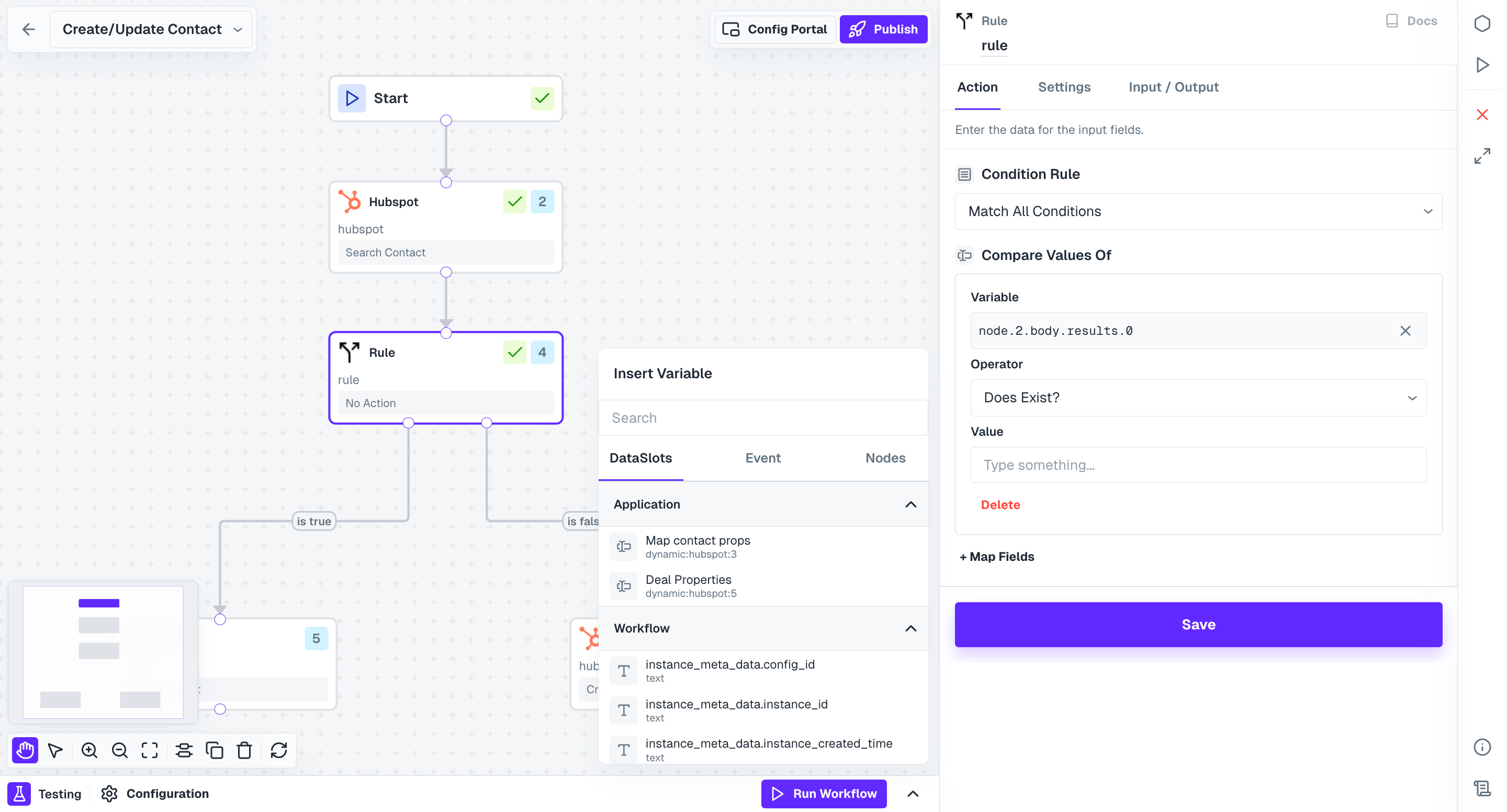
Event
Event
Event variables come from the payload of the event that triggered the workflow. Use them to pass event data dynamically into downstream nodes.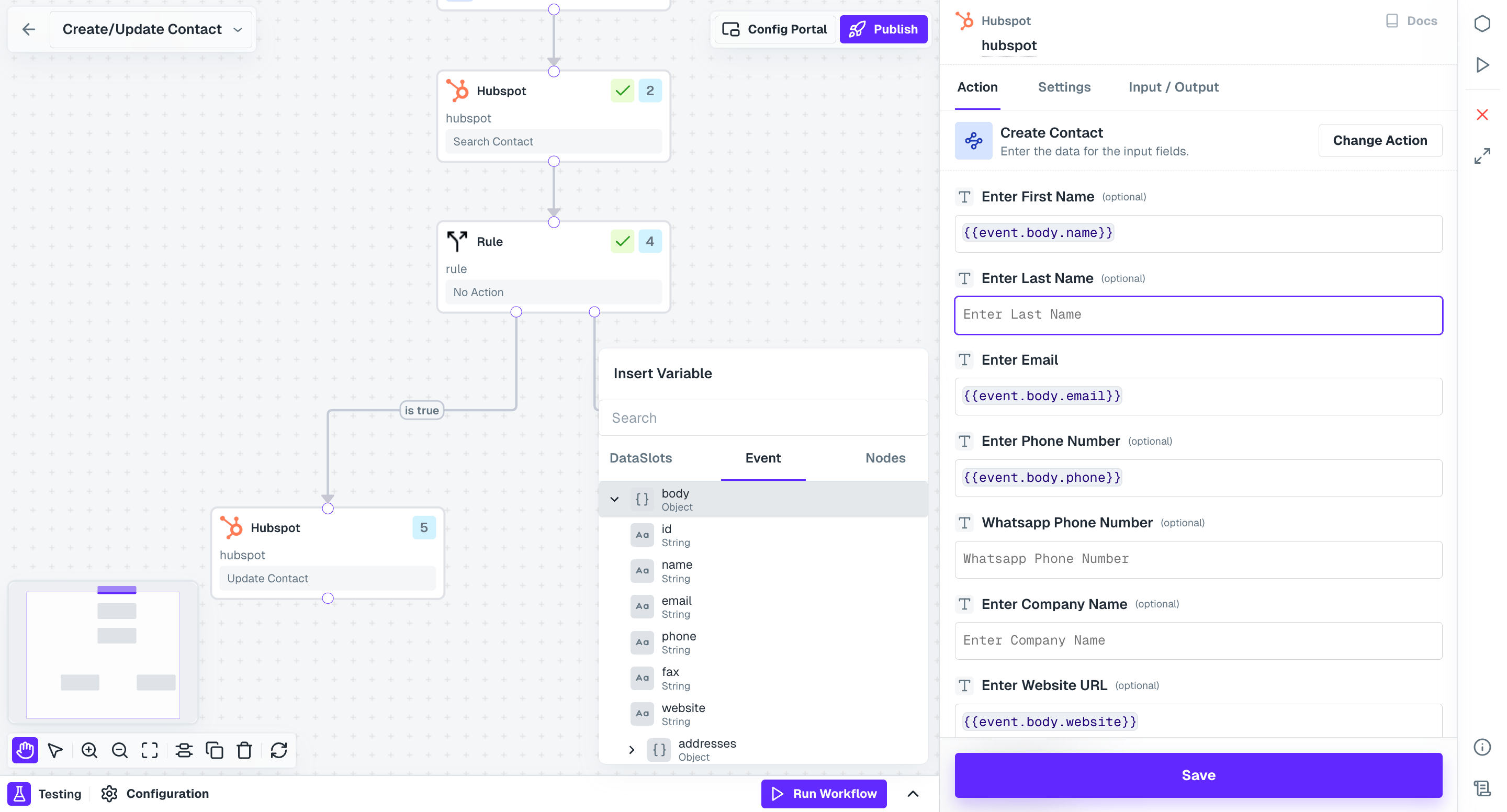
Nodes
Nodes
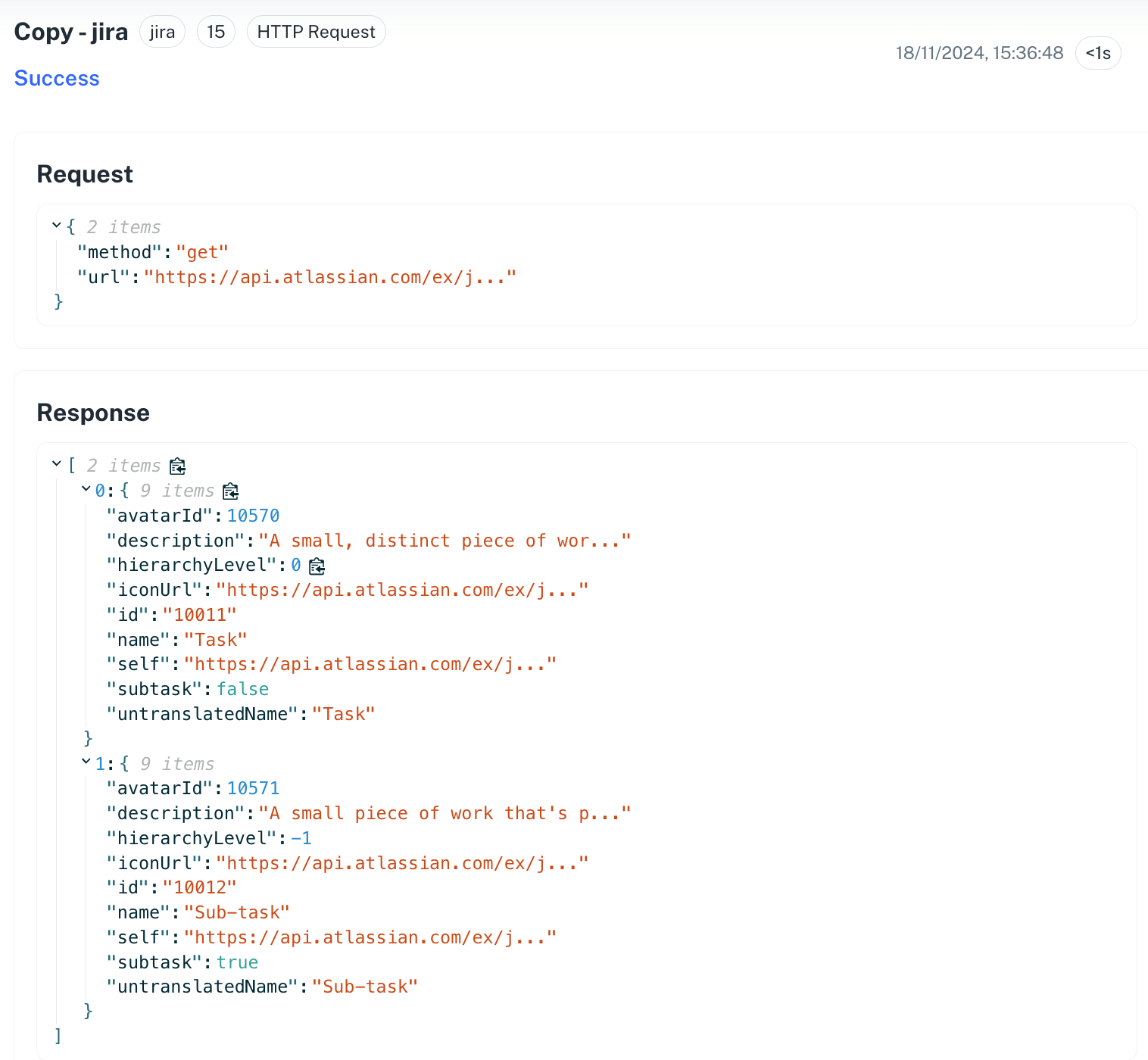
The Nodes tab exposes data generated by upstream nodes in the current workflow. Each node returns a response object; downstream nodes can read any field on it.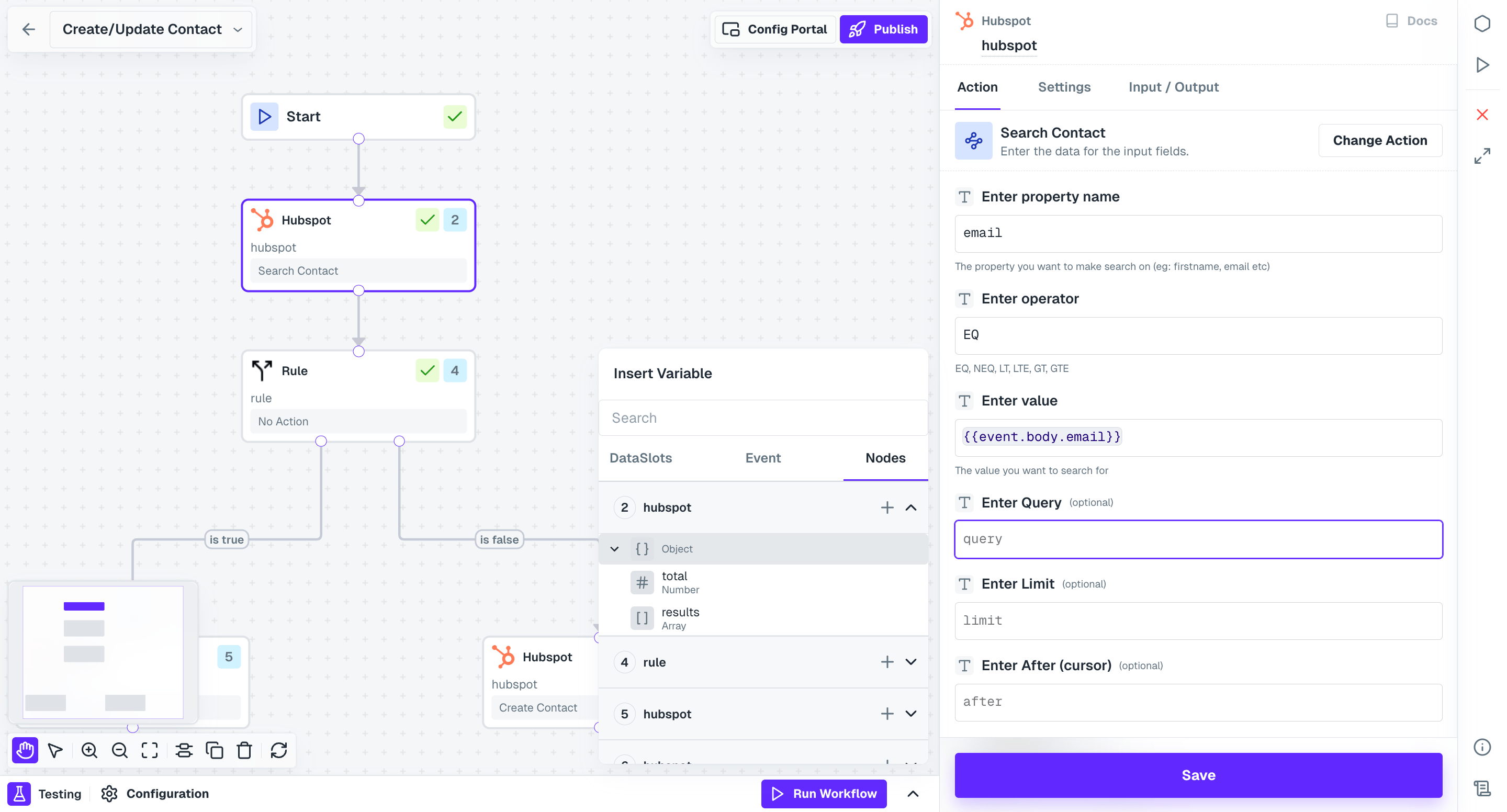
A node’s response fields only appear here after you run a test execution on that node. Open the node’s Input/Output panel and click Run node to populate its variables.
Environment variables
Environment variables are workspace-scoped values your workflows and integrations reference by name at runtime. Set them once on the Environment Variables page and Refold substitutes the current workspace’s value wherever a workflow references it. Open the page from Settings > Organization > Environment Variables. Typical uses include API endpoints, region codes, feature flags, default tokens, and anything else that should vary between environments without editing the workflow itself. Environment variables come in three scopes:| Scope | Where it applies | Typical content |
|---|---|---|
| Global (workspace) | All workflows and integrations in the workspace | COMPANY_NAME, SUPPORT_EMAIL, API_BASE_URL, DEFAULT_TIMEZONE |
| Integration | A specific integration, can vary per linked account | SALESFORCE_API_VERSION, HUBSPOT_PORTAL_ID |
| Workflow | A single workflow’s execution context | execution_id, start_time, processed_count |
Create a variable
Naming conventions
UseALL_CAPS_SNAKE_CASE with descriptive prefixes so variables stay organized as the list grows. Names are case-sensitive.
Secure vs non-secure
Secure variables are encrypted at rest and in transit. Access requires appropriate user permissions and API key scopes.
Access control
Refold controls who can view and modify variables by role:- Admin: full access to all variables.
- Developer: view and modify non-secure variables.
- Viewer: read-only access to non-secure variables.
Audit logging
Every variable access and modification is logged. Each entry includes the timestamp, event type, user, variable name, workflow, and execution.Templating tokens
Beyond workflow data and environment variables, the templating engine exposes built-in tokens for instance metadata and linked account data. These are available everywhere templates work: workflow node fields, API Proxies, and authorization/developer settings.Instance metadata
An instance is a single workflow execution run. The engine exposes metadata about that run at runtime:| Token | Returns |
|---|---|
{{instance_meta_data.event_name}} | Name of the event that triggered the workflow |
{{instance_meta_data.config_id}} | The Config id used for this run |
{{instance_meta_data.instance_created_time}} | Start time of the execution |
{{instance_meta_data.instance_id}} | Unique id for this execution instance |
Linked account
Linked account variables carry data specific to the end user whose account triggered the workflow:- User-Defined Fields (UDFs):
{{linked_account.udf.<UDF property>}} - Authorization credentials:
{{linked_account.auth_credentials.<auth property>}}
Reference a variable
All variables, regardless of category, are referenced with double curly braces.Reach into a node’s response
Every workflow node returns a response object. Reference it from a downstream node by its node number..0 form reaches into the first item of an array response. The response:0.name form returns the name field of the first item.
Use a tested response as a variable
When you run a test on a node, its response fields appear as named variables in the Insert Variable picker. These follow the format<node_number>.<response_field>, for example 4.id.
Select the target field
Open the downstream node and click the input field where you need the variable.
Pick the upstream node
In the Insert Variable modal, open the Nodes tab and expand the upstream node to see its response fields.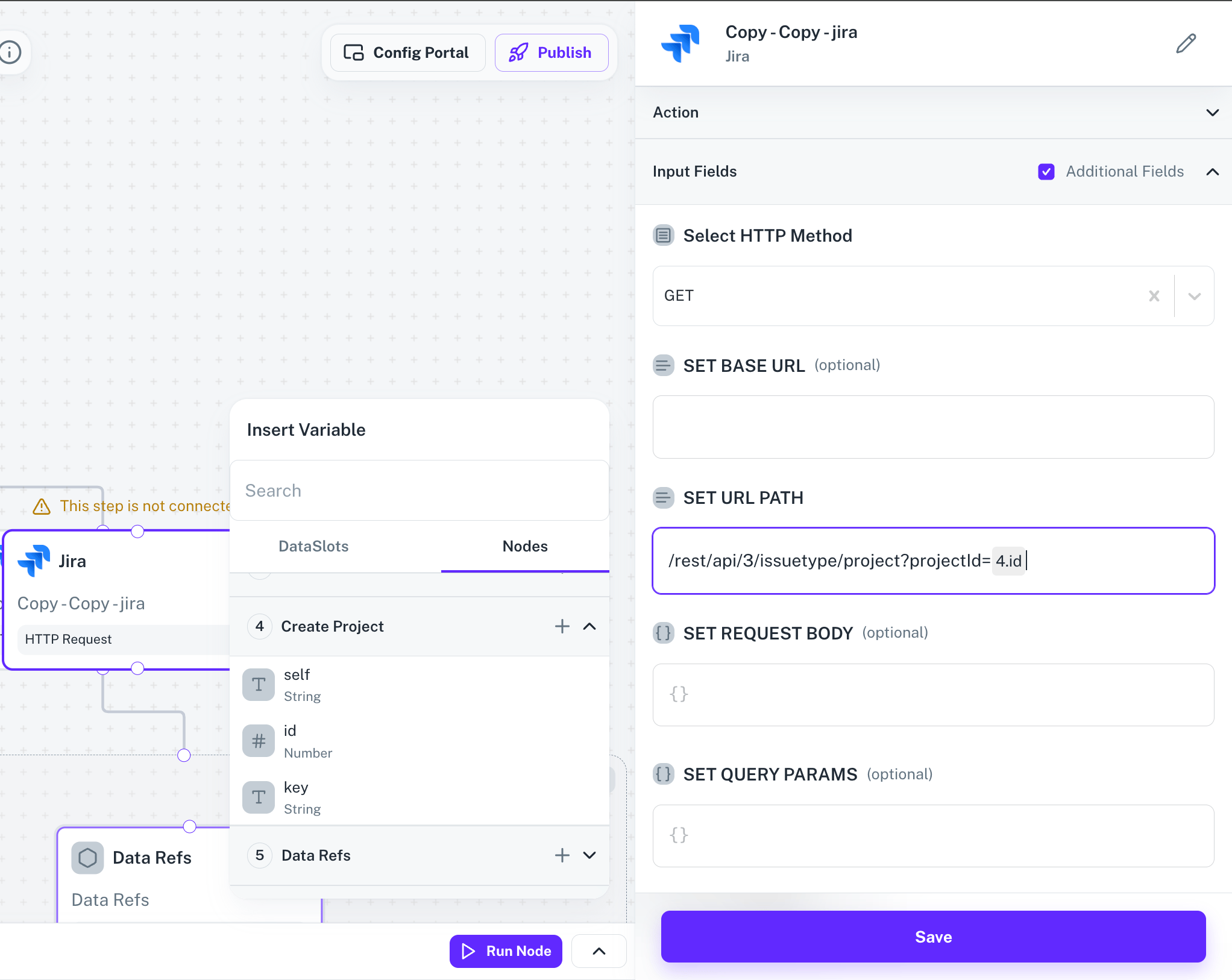
Run the node if no response exists
If the upstream node has no response yet, click Run node to perform a test execution. Workflow Testing prerequisites must be satisfied first. See Workflow Testing.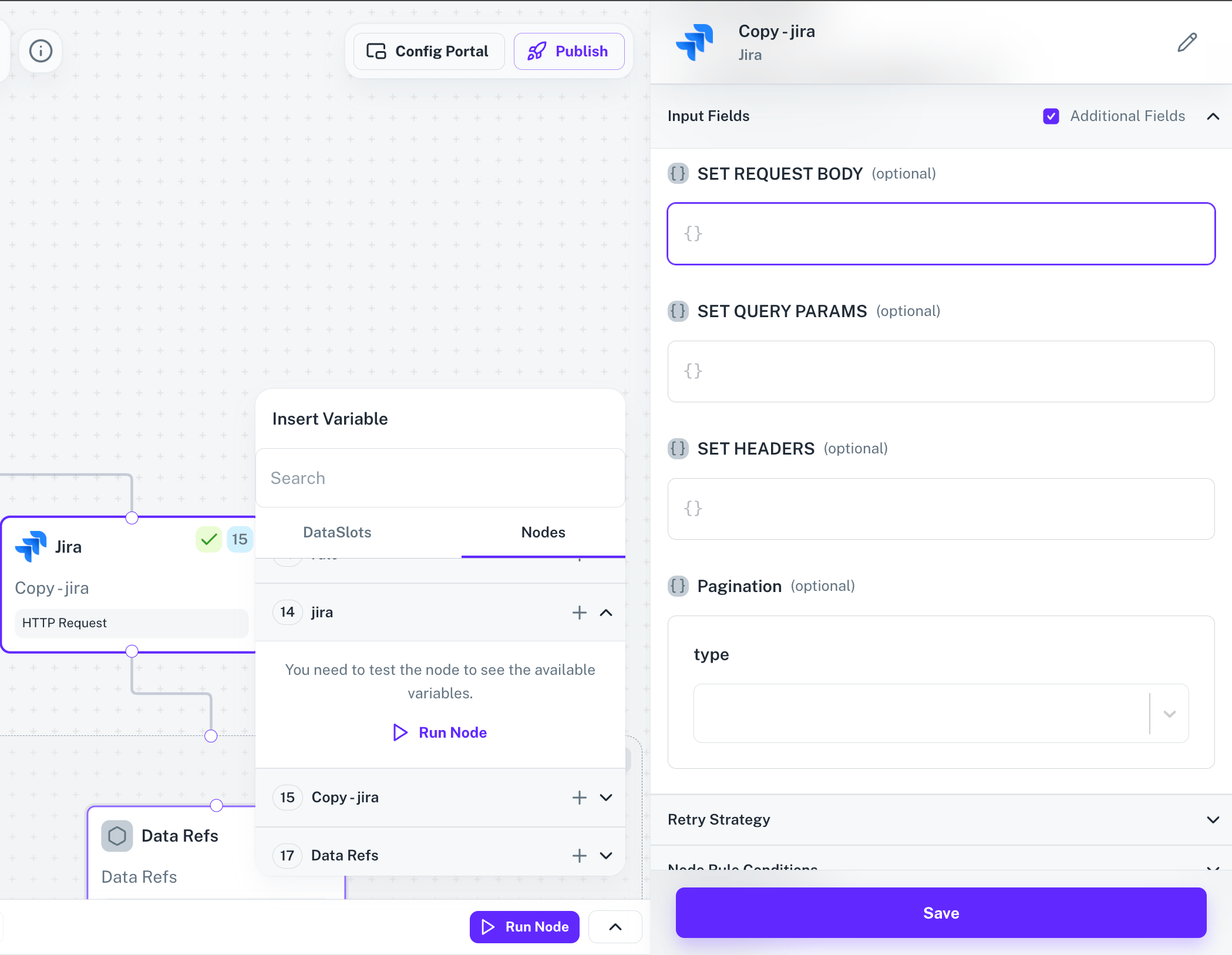
If a node’s response structure changes (different input payload, different branch), run the test again with the new payload. The updated structure replaces the old one in downstream pickers.
Where templating works
The{{ }} syntax is accepted in three places:
- Workflow node fields: any input field on any node in the workflow editor.
- API Proxies: URL paths, headers, query parameters, and request bodies.
- Authorization and developer settings: connector auth configuration that references linked account data or environment variables.
HTTP Request node
Substitute variables into the URL, headers, and body of an HTTP Request node.Transform node
Embed variables inside Transform node JavaScript via string interpolation.Conditional logic
Use variables in conditions, both as raw values and as quoted strings.Runtime and calculated variables
You can compute values during execution and store them as variables for downstream nodes.workflow.setVariable(name, value)stores a value.workflow.getVariable(name)retrieves it.
Arrays and objects
Workflow execution context
A few variables are populated automatically for every run:| Token | Meaning |
|---|---|
{{execution_id}} | Unique id for the current run |
{{start_time}} | When the execution began |
{{triggered_by}} | The user or event that triggered the run |
{{input_data}} | The trigger payload |
{{processed_count}} | Intermediate counter you can update |
{{error_count}} | Intermediate error tally |
{{last_sync_time}} | Timestamp from a prior sync step |
Multi-environment setup
A common pattern is to prefix variables withDEV_, STAGING_, and PROD_, then read the active environment from an ENVIRONMENT variable.
Common patterns and pitfalls
Validate required variables
Fail fast when a workflow expects variables that are missing or malformed.Document variables alongside the workflow
Leave a short header comment in Transform nodes so teammates know what each variable expects.Test against multiple configurations
Troubleshooting
Variable not found
Variable not found
The workflow fails with a “Variable not found” error.
- Check the variable name’s spelling and case (names are case-sensitive).
- Verify the scope (global vs integration-specific vs workflow).
- Confirm the variable exists in the current environment.
- Check permissions and access rights for the calling role.
Variable value not updating
Variable value not updating
Old values persist after you edited a variable.
- Clear the workflow cache if you updated the variable recently.
- Check whether a more-specific scope is overriding the value.
- Verify the workflow isn’t overwriting the variable mid-run via
workflow.setVariable. - Restart the workflow execution to pick up the new value.
Secure variable access denied
Secure variable access denied
You cannot view or use a secure variable.
- Check the user’s permissions for secure variable access.
- Verify the API key has the required scopes.
- Confirm the variable is marked secure in settings.
- Contact an administrator if you need elevated access.
Node response variables missing
Node response variables missing
A downstream node can’t see fields from an upstream node.
- Run a test execution on the upstream node via Input/Output > Run node.
- If the response shape changed, re-run the test with the new input payload.
- Confirm Workflow Testing prerequisites are met.
Next steps
Templating reference
Deep reference on
{{ }} syntax, operators, and helpers.Environment Variables
Manage workspace-scoped variables in Settings.
Workflow Testing
Run node tests so their responses become variables.