

- API Key Authentication - Best for internal integrations using a Personal Access Token
- OAuth 2.0 Authentication - Best for end-user authorization using PKCE (no client secret required)
API Key Authentication
To successfully connect with the Databricks integration using API Key, a Linked Account or an end-user will need to provide the following:- API Key (Personal Access Token)
- Base URL
To understand how a Linked Account can get the above mentioned credentials, refer below.
Getting Credentials of Databricks
To acquire the required credentials and connect a Linked Account, please follow the steps mentioned below:- Log in to your Databricks workspace at your workspace URL (e.g.,
https://<workspace-id>.azuredatabricks.net). - Click on your profile icon in the top right corner and select
Settings.
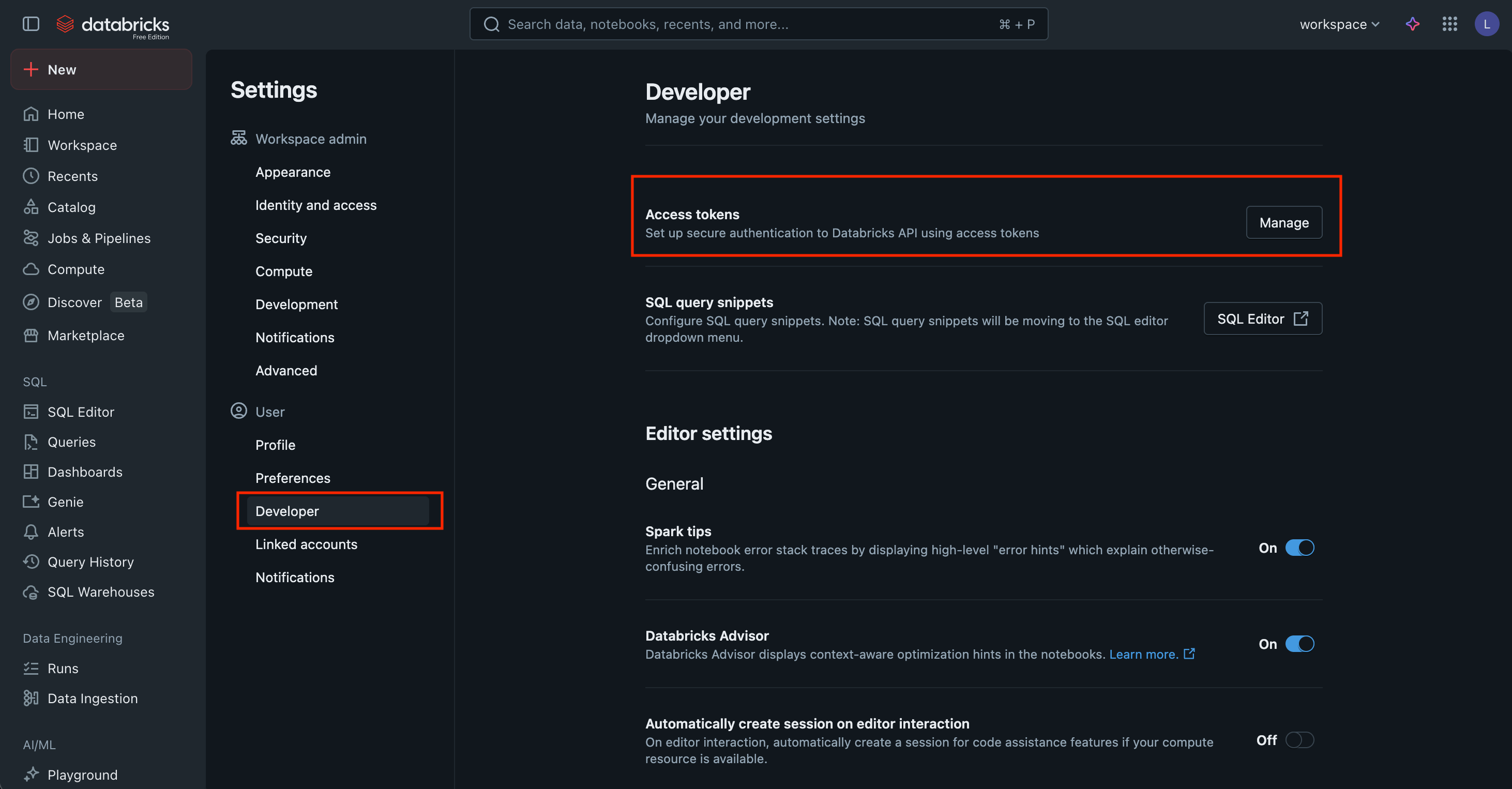
- Navigate to
Developerin the left menu > Click on theManagebutton next to Access tokens as shown above. - Click
Generate new token.
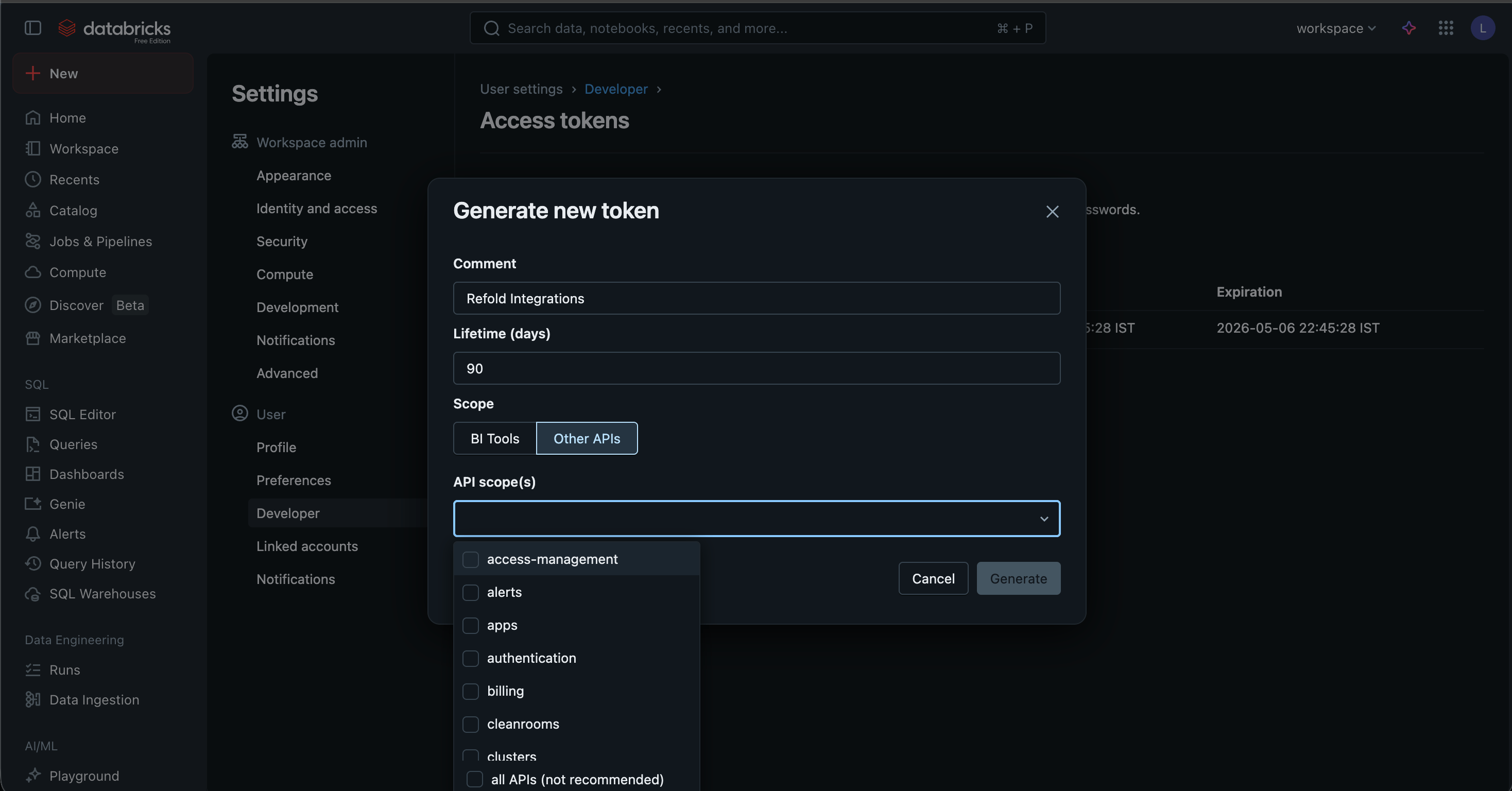
- Provide a Comment (e.g., “Refold Integration”) and set a Lifetime for the token. Select any particular scopes as should be accessible by the Refold Databricks connector. Click
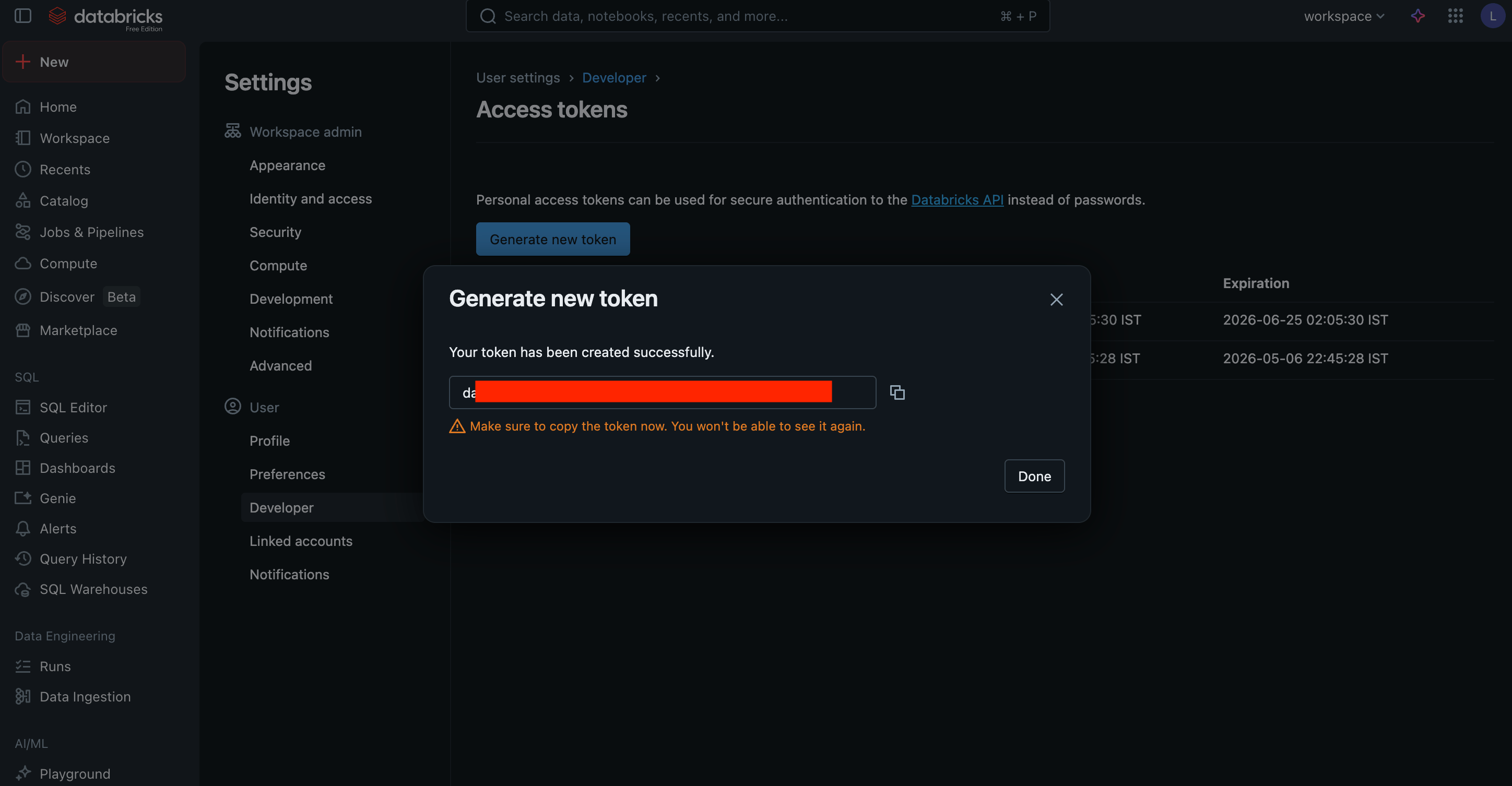
Generate. - Copy the token displayed on the screen. This is your API Key.
- Your Base URL is the workspace URL you used to log in (e.g.,
https://<workspace-id>.azuredatabricks.net).
OAuth 2.0 Authentication
To setup your Databricks app in Refold for OAuth, you will need the following credentials from your Databricks account console:- Client ID
- Workspace URL
Databricks OAuth uses PKCE (Proof Key for Code Exchange), so no client secret is required. You will need to register a new app connection in the Databricks account console.
Creating an OAuth App Connection in Databricks
To create a Databricks OAuth app connection and acquire the above mentioned credentials, please follow the steps mentioned below:- Log in to your Databricks account console at https://accounts.cloud.databricks.com.
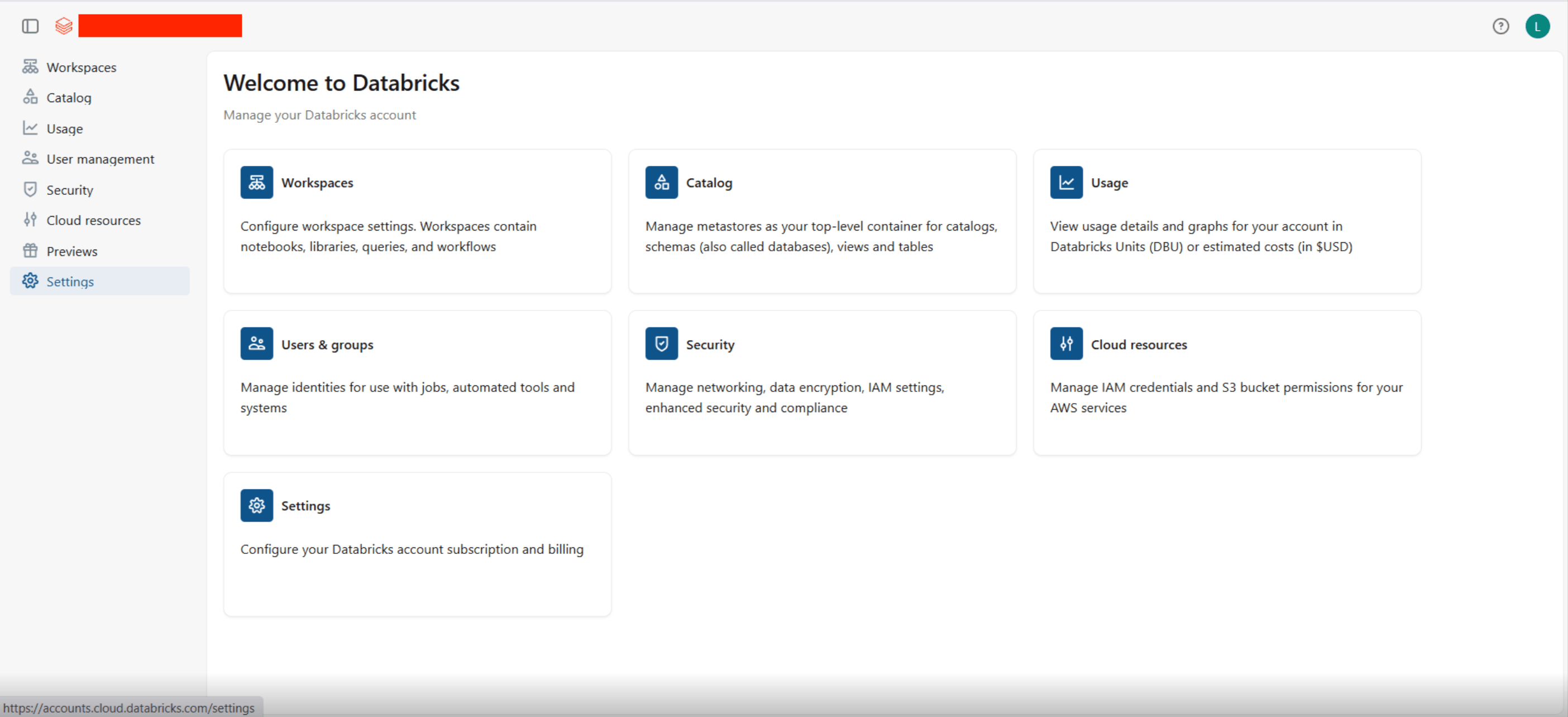
- Click on Settings in the left sidebar.
- Navigate to the App connections tab.
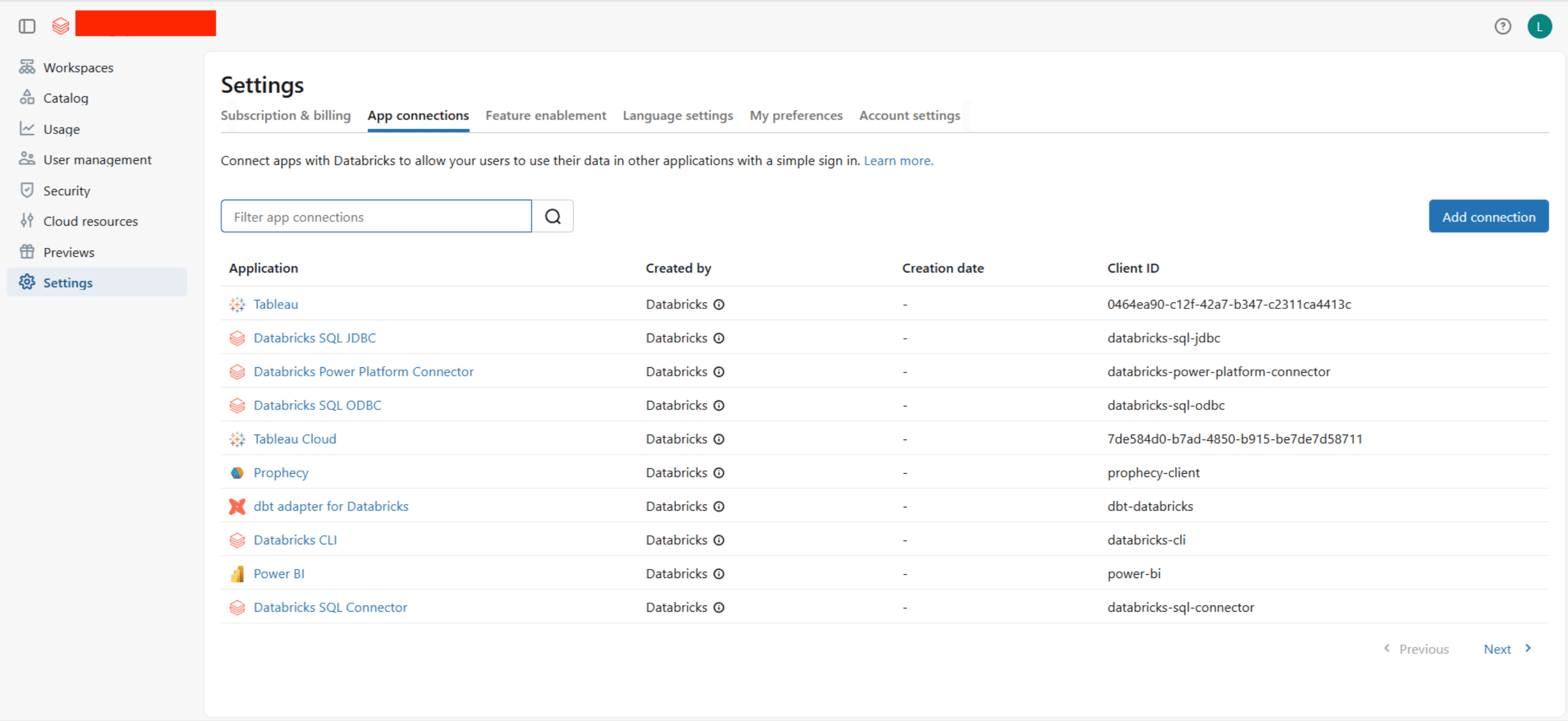
- Click on Add connection in the top right corner.
- Fill in the connection details:
- Application Name: Give your app a descriptive name (e.g., “Refold-databricks-app”).
- Redirect URLs: Go to your
Apps catalogin Refold > Search forDatabricks>Settings>Use your credentials>Callback Url> Copy it and paste it here. - Access scopes: Select the required scopes (e.g.,
SQLorAll APIs). - Client secret: Leave the Generate a client secret checkbox unchecked — Databricks OAuth with PKCE does not require a client secret.
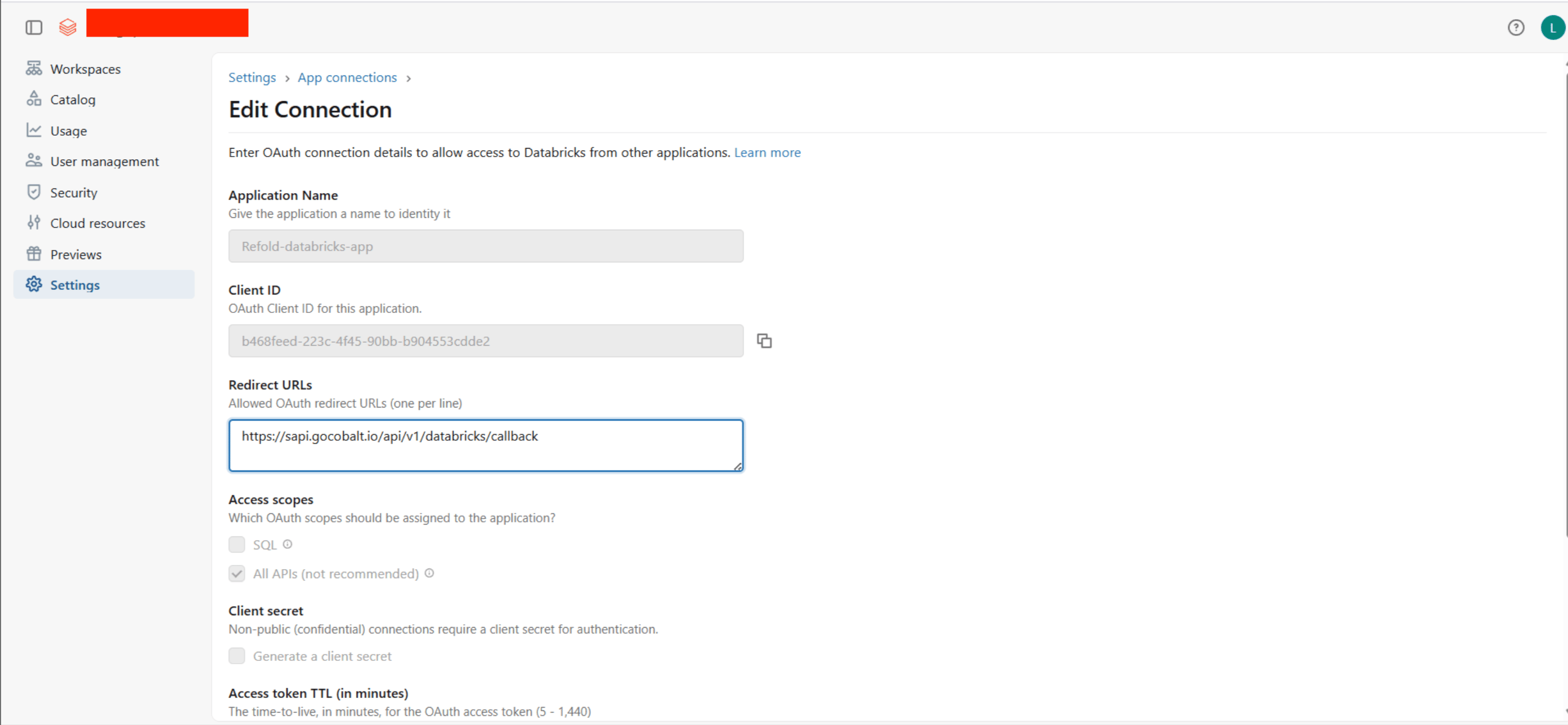
- Click Add. A Connection created popup will appear displaying your Client ID. Copy it and store it securely.
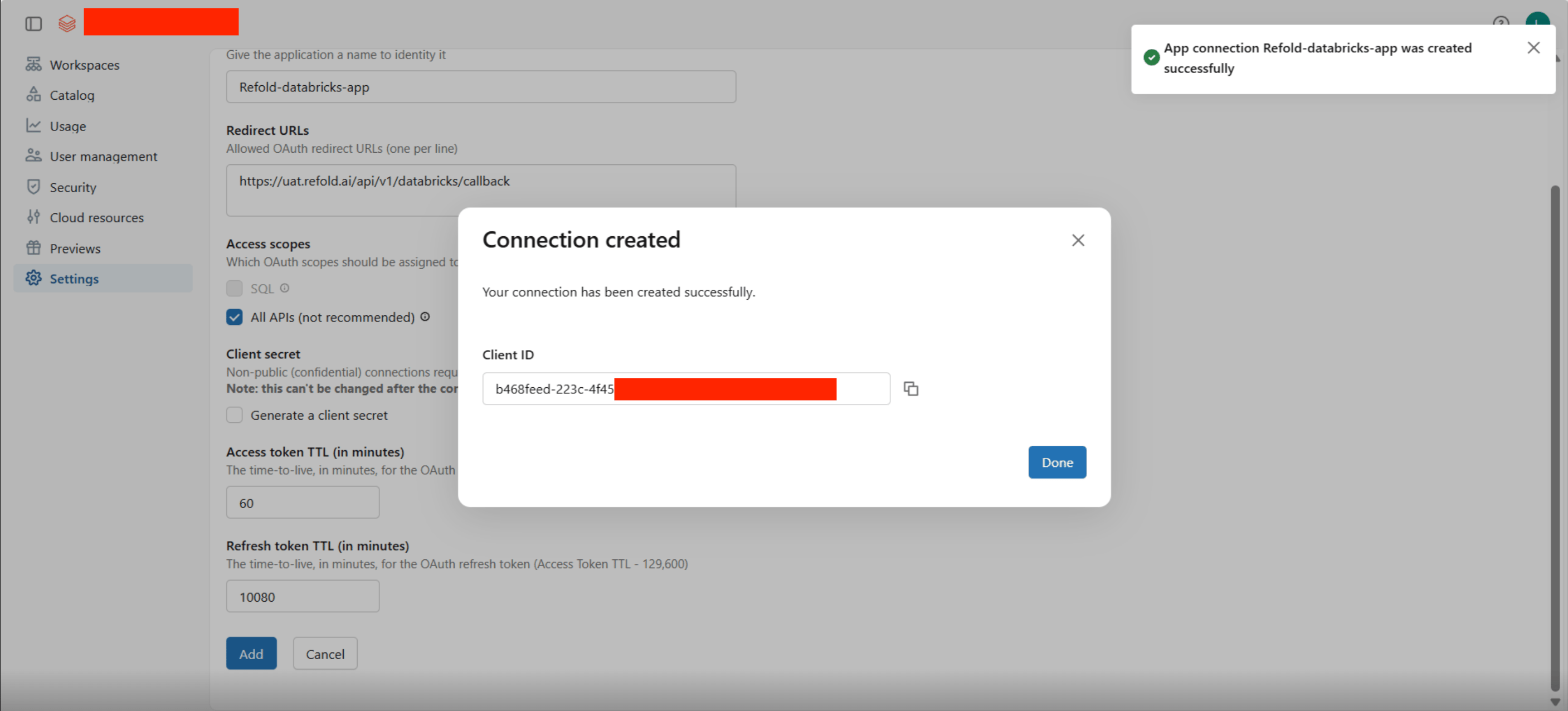
- Navigate to Workspaces in the left sidebar, click on your workspace, and copy the Workspace URL shown in the configuration (e.g.,
https://dbc-<id>.cloud.databricks.com).
Configuring OAuth credentials in Refold
App settings page lets you configure the authentication settings for anOAuth2 based application. For your customers to provide you authorization to access their data, they would first need to install your application. This page lets you set up your application credentials.
Provide the acquired Client ID and Workspace URL under Settings of the Databricks app in Refold and save it.
Configuring Scopes
Refold lets you configure what permissions to ask from your users while they install your application. The scopes can be added or removed from the App settings page, underPermissions & Scopes section.
For some applications Refold sets mandatory scopes which cannot be removed. Additional scopes can be selected from the drop down. Refold also has the provision to add any custom scopes supported by the respective platform.
Actions and triggers
Once the above setup is completed, you can create orchestrations of your use-cases using Databricks actions and triggers. Following are the set of Databricks actions and triggers supported by Refold.- Actions
- Triggers
Catalogs
Catalogs
- Query Catalogs - Gets an array of catalogs in the metastore in Databricks.
- Create Catalog - Creates a new catalog instance in the parent metastore in Databricks.
- Retrieve Catalog - Gets the specified catalog in a metastore in Databricks.
- Update Catalog - Updates the catalog that matches the supplied name in Databricks.
- Delete Catalog - Deletes the catalog that matches the supplied name in Databricks.
Clusters
Clusters
- Create Cluster - Create a new cluster in Databricks.
- List Clusters - List all pinned and active clusters in Databricks.
- Get Cluster Info - Get information about a specific cluster in Databricks.
- Query Clusters - Return information about all pinned, active, and recently terminated clusters in Databricks.
- Start Cluster - Start a terminated cluster in Databricks.
- Restart Cluster - Restart a running cluster in Databricks.
- Terminate Cluster - Terminate a cluster in Databricks.
- Delete Cluster - Permanently terminates a cluster and removes it asynchronously in Databricks.
Groups
Groups
- List Groups - Get all group details in Databricks.
- Create Group - Create a new group in Databricks.
- Update Group - Update group details in Databricks.
- Delete Group - Delete a group in Databricks.
Jobs
Jobs
- Create Job - Create a new job in Databricks.
- Query Jobs - Retrieves a list of jobs in Databricks.
- Show Job - Retrieves the details for a single job in Databricks.
- Update Job - Add, update, or remove specific settings of an existing job in Databricks.
- Delete Job - Delete a job in Databricks.
- Run Job - Run a job and return the run ID of the triggered run in Databricks.
- Get Job Run - Retrieves the metadata of a run in Databricks.
- Cancel Run - Cancels a job run or a task run asynchronously in Databricks.
Schemas
Schemas
- Query Schemas - Gets an array of schemas for a catalog in the metastore in Databricks.
- Create Schema - Creates a new schema for a catalog in the metastore in Databricks.
- Retrieve Schema - Gets the specified schema within the metastore in Databricks.
- Update Schema - Updates a schema for a catalog in Databricks.
- Delete Schema - Deletes the specified schema from the parent catalog in Databricks.
SQL Statements
SQL Statements
- Execute Statement - Execute a SQL statement and optionally await its results in Databricks.
- Retrieve Statement - Poll for the status and results of a SQL statement execution in Databricks.
- Retrieve Statement Result Chunk - Fetch a paginated chunk of results from a completed SQL statement in Databricks.
- Cancel Statement Execution - Request that an executing SQL statement be canceled in Databricks.
Tables
Tables
- Query Tables - Gets an array of all tables for a catalog and schema in the metastore in Databricks.
- Retrieve Table - Gets a table from the metastore for a specific catalog and schema in Databricks.
- Check Table Exists - Checks if a table exists in the metastore for a specific catalog and schema in Databricks.
- Query Table Summaries - Gets an array of summaries for tables under a schema and catalog in Databricks.
- Delete Table - Deletes a table from the specified parent catalog and schema in Databricks.
Users
Users
- List Users - Get details for all users in Databricks.
- Create User - Create a new user in Databricks.
- Get User - Get user details by ID in Databricks.
- Update User - Update an existing user in Databricks.
- Delete User - Delete a user in Databricks.
Volumes
Volumes
- Query Volumes - Gets an array of volumes for a catalog and schema in the metastore in Databricks.
- Create Volume - Creates a new volume in Databricks.
- Retrieve Volume - Gets a volume from the metastore for a specific catalog and schema in Databricks.
- Update Volume - Updates the specified volume in Databricks.
- Delete Volume - Deletes a volume from the specified parent catalog and schema in Databricks.
Warehouses
Warehouses
- Query Warehouses - Lists all SQL warehouses that a user has manager permissions on in Databricks.
- Create Warehouse - Creates a new SQL warehouse in Databricks.
- Retrieve Warehouse - Gets the information for a single SQL warehouse in Databricks.
- Update Warehouse - Updates the configuration for a SQL warehouse in Databricks.
- Start Warehouse - Starts a SQL warehouse in Databricks.
- Stop Warehouse - Stops a SQL warehouse in Databricks.
- Delete Warehouse - Deletes a SQL warehouse in Databricks.
Workspace
Workspace
- Import Workspace - Import a workspace object (notebook or file) or the contents of an entire directory in Databricks.
- Export Workspace - Export a workspace object or the contents of an entire directory in Databricks.
- List Workspace - List the contents of a directory in Databricks.
- Retrieve Object Status - Gets the status of an object or directory in Databricks.
- Delete Workspace - Deletes an object or a directory in Databricks.
- Query Directories - Lists the contents of a directory, or the object if it is not a directory in Databricks.
- Create Directory - Creates the specified directory and any necessary parent directories in Databricks.
Others
Others
- HTTP Request - Make HTTP API calls to any Databricks documented REST APIs.
- Incremental Sync - Check for new data in the endpoint.