

Prerequisites
- A Refold account with at least one linked account created
- At least one connector configured with valid credentials (see Connector setup)
- An MCP client installed (Claude Desktop, Cursor, or Windsurf), or use the built-in Embed Chat, which needs no client install
Each linked account gets its own Server URL. Create one linked account per end user before proceeding.
Create your MCP server
Open MCP Servers
In the Refold dashboard, go to Embedded Agents > MCP Servers and click + Create Server.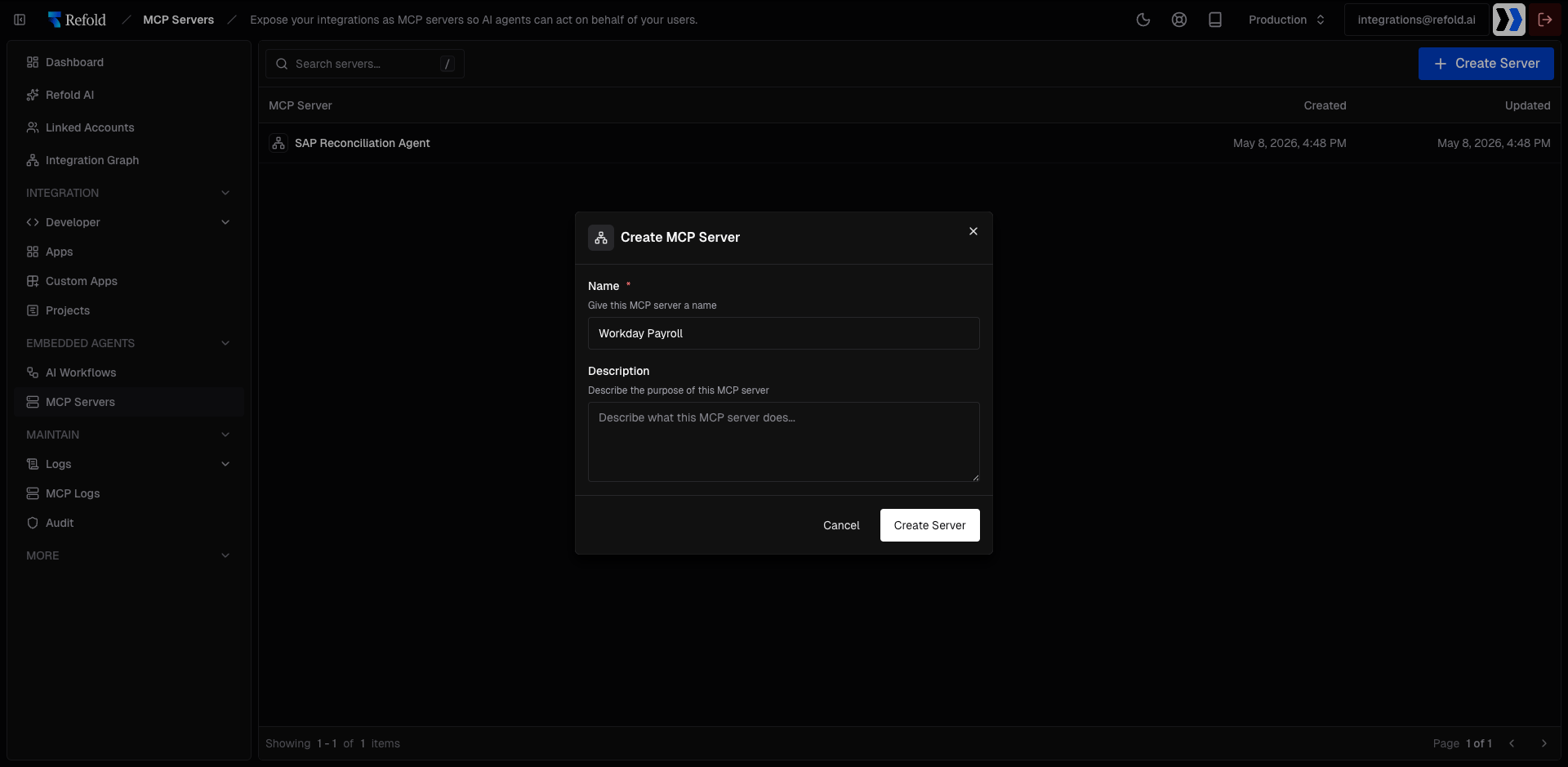
Name and describe the server
Set a Name and Description. The AI agent reads these when it connects, so write for the model. Be specific about which apps and actions are available.
| Field | Good | Avoid |
|---|---|---|
| Name | Acme CRM Integration | My Server |
| Description | Access Salesforce and HubSpot. Create, update, and query contacts, deals, and accounts. | Integration server |
Add applications
Go to the Applications tab and add the apps you want the agent to access. Each app’s actions and workflows become available as MCP tools.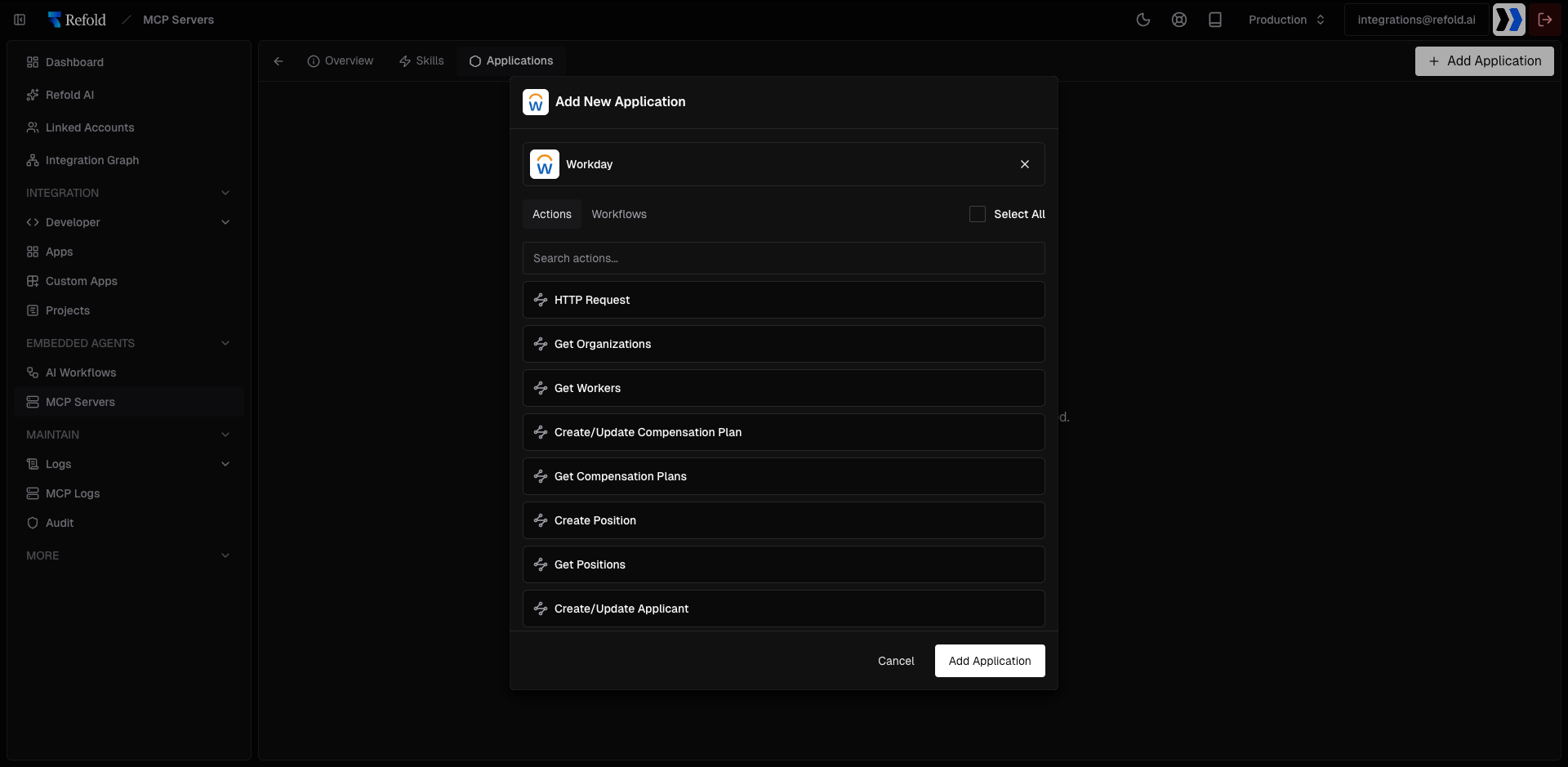
Copy the Server URL
Go back to the Overview tab and copy the Server URL. The token authenticates one linked account, so issue a separate URL for each end user.Refold accepts the token two ways. Use whichever your MCP client supports. In the examples below, 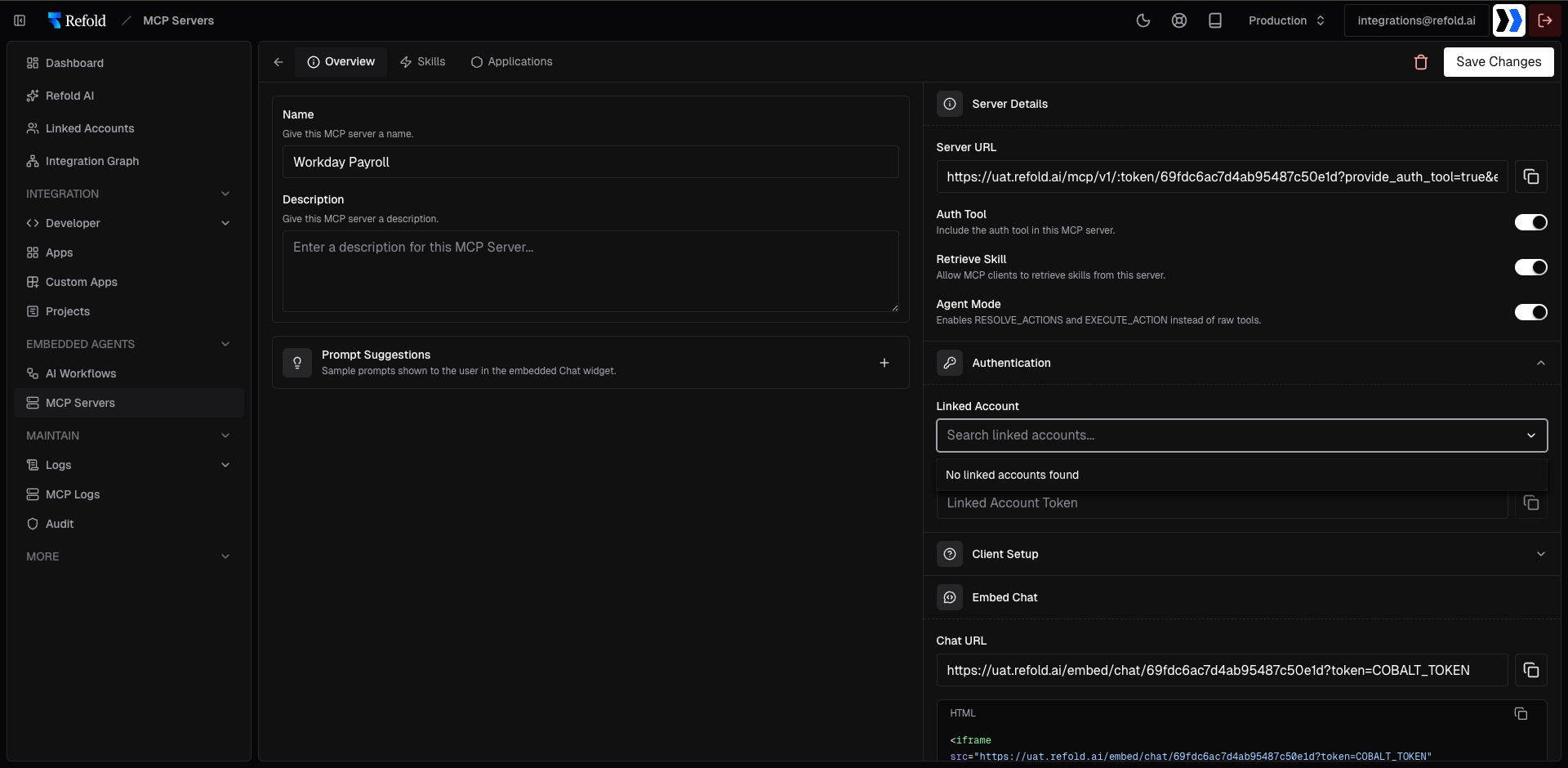
<domain> is your Refold host (for example, app.refold.ai); the Server URL you copy from the dashboard already has it filled in.Connect a client
- Claude Desktop
- Cursor
- Windsurf
- Embed Chat
Open the config file
| OS | Path |
|---|---|
| macOS | ~/Library/Application Support/Claude/claude_desktop_config.json |
| Windows | %APPDATA%\Claude\claude_desktop_config.json |
Add your server
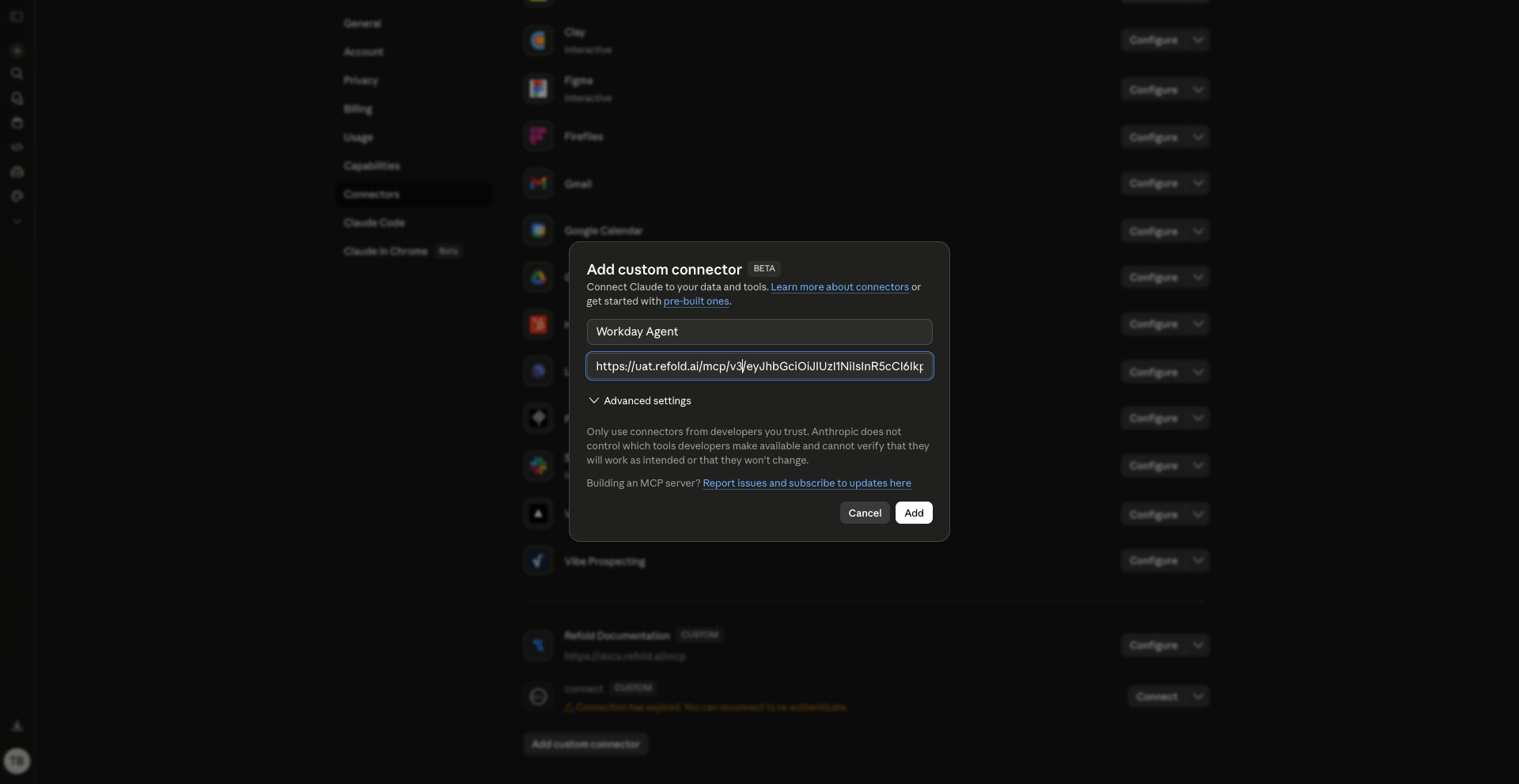
Test the connection
In your MCP client, run:Prompt
Prompt
data holds the app’s response:
{ "success": false, ... } with the reason. If the contacts come back under data, the connection works end to end.
If an app returns an auth error, the linked account may not have completed the auth flow for that app. Check the linked account’s connection status in the dashboard.
Troubleshooting
| Problem | Likely cause | Fix |
|---|---|---|
| No tools visible | Server URL is wrong or token is invalid | Re-copy the URL from the dashboard. Use the full URL including token and server ID. |
| ”Unauthorized” error | Token expired or linked account deleted | Generate a fresh token for the linked account. |
| Action fails with auth error | App credentials missing or expired | Have the end user re-authenticate through your auth flow. |
| Tools visible but calls fail | App not properly configured | Check the app’s configuration in Connectors and verify scopes. |
Next steps
Connect from agent code
Wire the Server URL into your agent framework with the Refold SDK.
Authentication
Understand how tokens work, per-user URLs, and access control.