> ## Documentation Index
> Fetch the complete documentation index at: https://cobalt-55-abhishek.mintlify.site/llms.txt
> Use this file to discover all available pages before exploring further.
# Data Variables
> The typed values that flow through a workflow: event payloads, node outputs, environment variables, and how to reference them with templating.
Data variables are the typed values that flow through a workflow. You reference them anywhere a node accepts a templated input, using the `{{ }}` syntax. Every variable picker shows the value's data type below its name, so you know what shape of data you are about to inject.
Three categories of variables share the same templating syntax:
* **Workflow data**: the triggering event's payload, outputs from upstream nodes, and values stored in [Config](/v3/platform/concepts/connector/supported-apps-actions) DataSlots.
* **Environment variables**: workspace-scoped values (API endpoints, region codes, feature flags, default tokens) that you manage in workspace settings and reference by name.
* **Templating tokens**: instance metadata, linked account fields, and helper expressions baked into the templating engine.
## Kinds of variables
### Workflow data
Workflow data is anything generated inside a single execution: the event that triggered the workflow, outputs from earlier nodes, and the DataSlots you defined on the Application or Workflow Config.
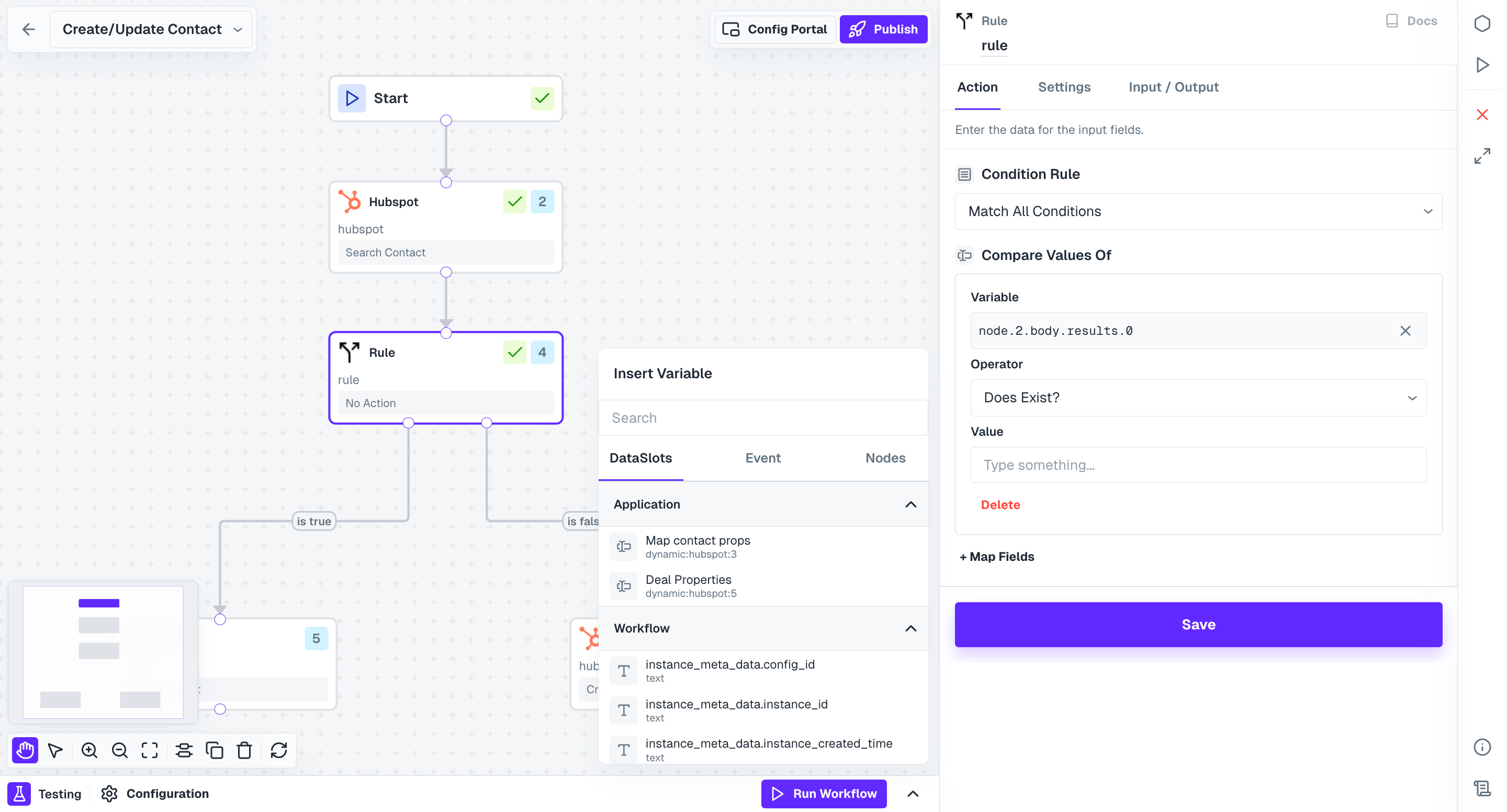
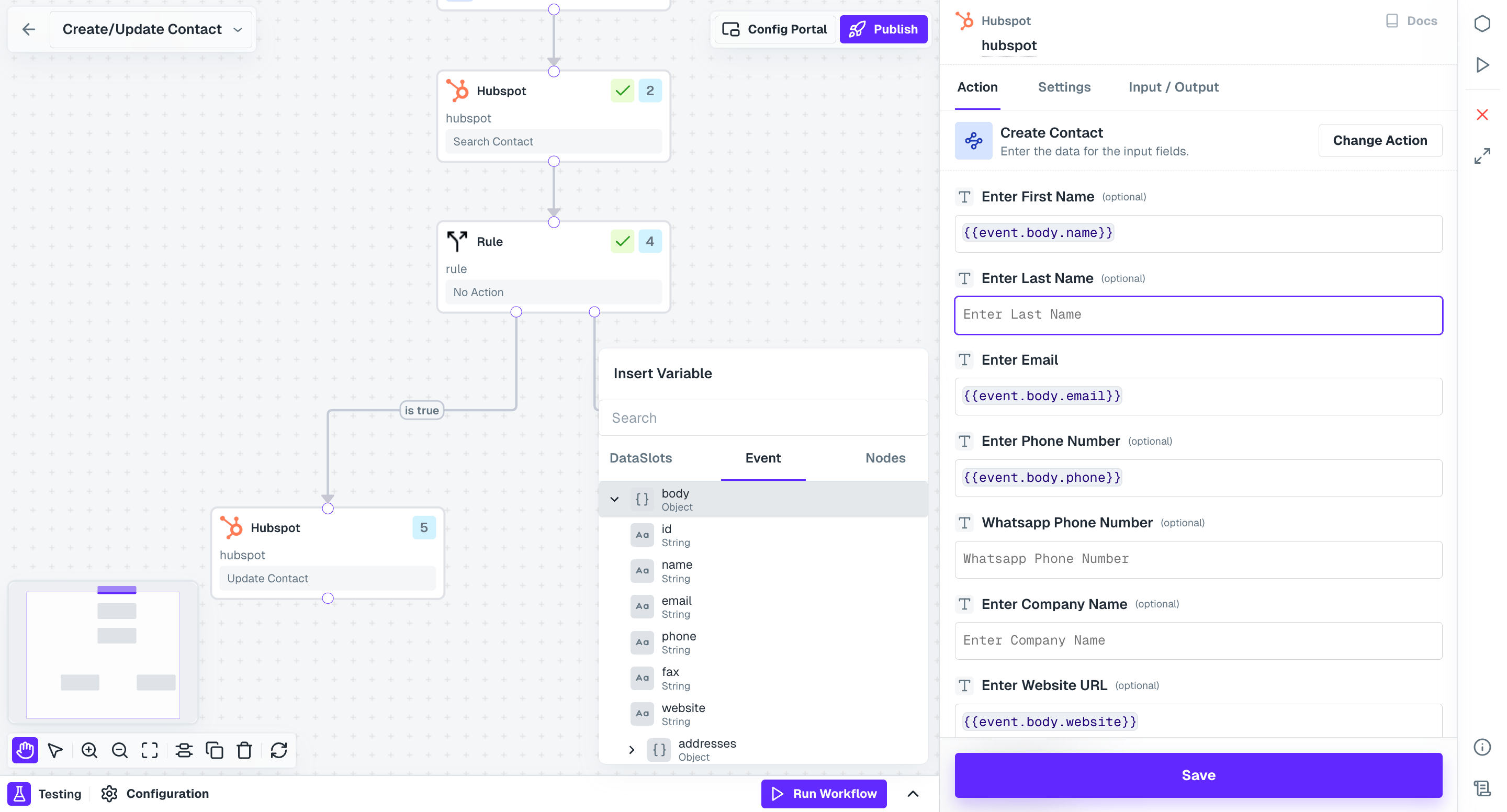
Open the **Insert Variable** picker by clicking any input field on a node. The picker groups workflow data into three tabs.
DataSlots are variables sourced from the [Application or Workflow Config](/v3/platform/concepts/connector/supported-apps-actions) you created. A few default meta variables are also available under Workflow DataSlots.
 Event variables come from the payload of the event that triggered the workflow. Use them to pass event data dynamically into downstream nodes.
 The Nodes tab exposes data generated by upstream nodes in the current workflow. Each node returns a response object; downstream nodes can read any field on it.
A node's response fields only appear here after you run a test execution on that node. Open the node's **Input/Output** panel and click **Run node** to populate its variables.
The Nodes tab exposes data generated by upstream nodes in the current workflow. Each node returns a response object; downstream nodes can read any field on it.
A node's response fields only appear here after you run a test execution on that node. Open the node's **Input/Output** panel and click **Run node** to populate its variables.
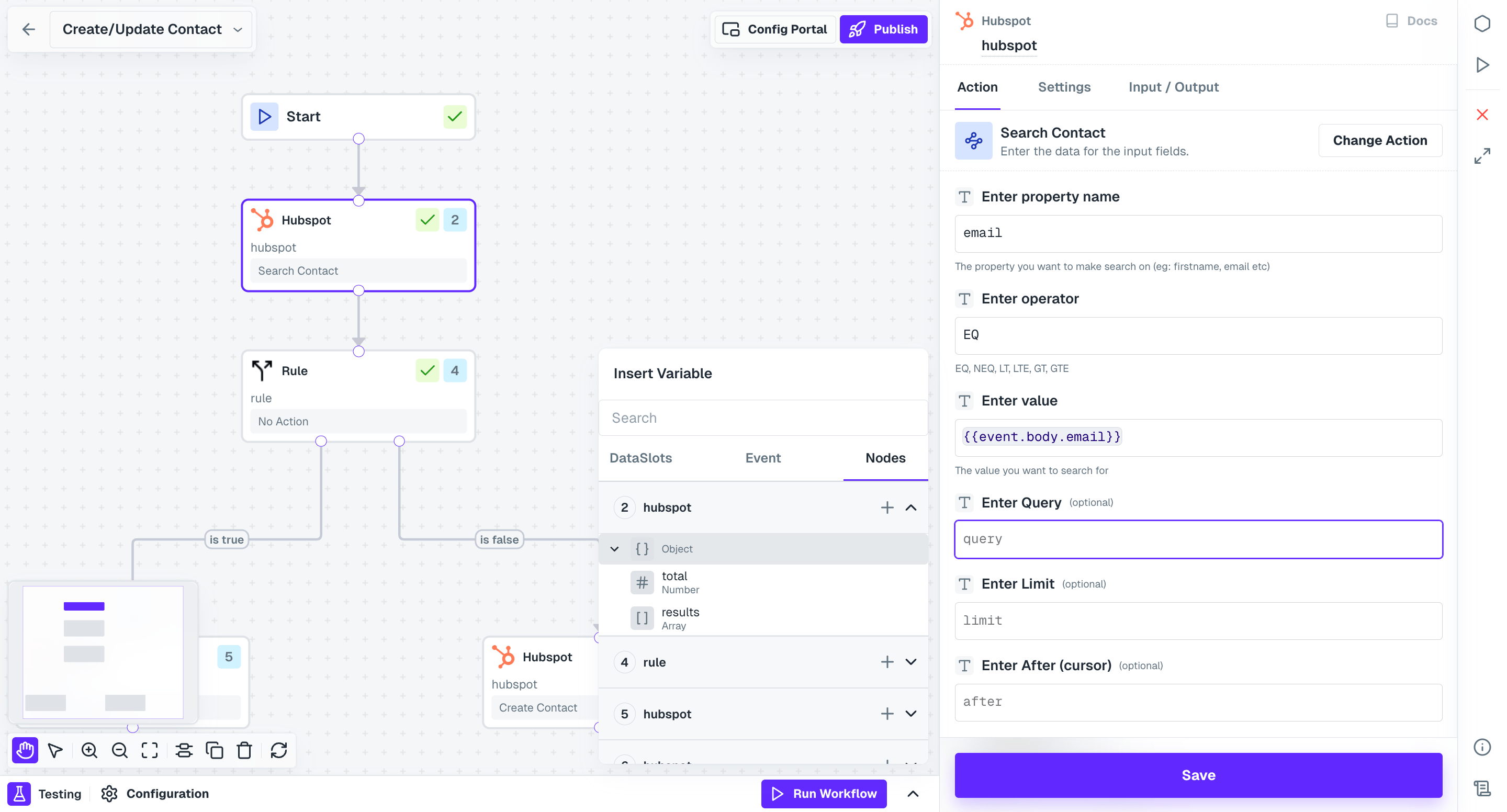 If the response structure of a node changes (for example, because you sent a different input payload), run the test again. The picker refreshes to the new shape.
### Environment variables
Environment variables are workspace-scoped values your workflows and integrations reference by name at runtime. Set them once on the [Environment Variables](/v3/platform/platform-settings/workspace-settings/environment-variables) page and Refold substitutes the current workspace's value wherever a workflow references it.
Open the page from **Settings > Organization > Environment Variables**. Typical uses include API endpoints, region codes, feature flags, default tokens, and anything else that should vary between environments without editing the workflow itself.
Environment variables come in three scopes:
| Scope | Where it applies | Typical content |
| ------------------ | --------------------------------------------------- | ------------------------------------------------------------------- |
| Global (workspace) | All workflows and integrations in the workspace | `COMPANY_NAME`, `SUPPORT_EMAIL`, `API_BASE_URL`, `DEFAULT_TIMEZONE` |
| Integration | A specific integration, can vary per linked account | `SALESFORCE_API_VERSION`, `HUBSPOT_PORTAL_ID` |
| Workflow | A single workflow's execution context | `execution_id`, `start_time`, `processed_count` |
More-specific scopes override less-specific ones, so a workflow-scoped variable wins over a workspace-level one with the same name.
#### Create a variable
Go to **Settings > Variables** in your Refold dashboard.
Click **Add Variable** and provide a name and value.
Select global, integration-specific, or workflow-specific.
Mark sensitive variables (API keys, passwords, tokens) as **secure** to encrypt their values.
#### Naming conventions
Use `ALL_CAPS_SNAKE_CASE` with descriptive prefixes so variables stay organized as the list grows. Names are case-sensitive.
```text Good names theme={null}
API_BASE_URL
SALESFORCE_CLIENT_ID
WEBHOOK_SECRET_KEY
MAX_RETRY_ATTEMPTS
DEFAULT_TIMEOUT_MS
```
```text Environment-prefixed theme={null}
PROD_DATABASE_URL
DEV_DATABASE_URL
STAGING_API_KEY
```
```text Grouped by purpose theme={null}
AUTH_SALESFORCE_CLIENT_ID
AUTH_HUBSPOT_API_KEY
API_SALESFORCE_BASE_URL
API_HUBSPOT_BASE_URL
CONFIG_MAX_RETRIES
CONFIG_TIMEOUT_MS
CONFIG_BATCH_SIZE
```
#### Secure vs non-secure
Always mark sensitive variables as secure. Secure variables are encrypted with AES-256, never stored in plain text, and not visible in logs or the UI.
```text Secure (encrypted) theme={null}
SALESFORCE_CLIENT_SECRET
DATABASE_PASSWORD
WEBHOOK_SIGNING_KEY
OAUTH_REFRESH_TOKEN
```
```text Non-secure (visible) theme={null}
API_BASE_URL
DEFAULT_TIMEOUT
MAX_RETRIES
ENVIRONMENT_NAME
```
Secure variables are encrypted at rest and in transit. Access requires appropriate user permissions and API key scopes.
#### Access control
Refold controls who can view and modify variables by role:
* **Admin**: full access to all variables.
* **Developer**: view and modify non-secure variables.
* **Viewer**: read-only access to non-secure variables.
#### Audit logging
Every variable access and modification is logged. Each entry includes the timestamp, event type, user, variable name, workflow, and execution.
```json theme={null}
{
"timestamp": "2024-01-15T10:30:00Z",
"event": "variable.accessed",
"user_id": "user_123",
"variable_name": "API_BASE_URL",
"workflow_id": "workflow_456",
"execution_id": "exec_789"
}
```
### Templating tokens
Beyond workflow data and environment variables, the templating engine exposes built-in tokens for instance metadata and linked account data. These are available everywhere templates work: workflow node fields, [API Proxies](/v3/native/configure/developer/api-proxies), and authorization/developer settings.
#### Instance metadata
An *instance* is a single workflow execution run. The engine exposes metadata about that run at runtime:
| Token | Returns |
| ---------------------------------------------- | --------------------------------------------- |
| `{{instance_meta_data.event_name}}` | Name of the event that triggered the workflow |
| `{{instance_meta_data.config_id}}` | The Config id used for this run |
| `{{instance_meta_data.instance_created_time}}` | Start time of the execution |
| `{{instance_meta_data.instance_id}}` | Unique id for this execution instance |
Instance metadata is available inside both workflows and API proxies.
#### Linked account
Linked account variables carry data specific to the end user whose account triggered the workflow:
* **User-Defined Fields (UDFs)**: `{{linked_account.udf.}}`
* **Authorization credentials**: `{{linked_account.auth_credentials.}}`
## Reference a variable
All variables, regardless of category, are referenced with double curly braces.
```text Basic reference theme={null}
{{API_BASE_URL}}
```
```text Fallback value theme={null}
{{API_BASE_URL || 'https://api.example.com'}}
```
```text Environment-prefixed concatenation theme={null}
{{ENVIRONMENT}}_API_KEY
```
```text Nested object access theme={null}
{{user.profile.email}}
```
```text Object property in interpolation theme={null}
{{API_CONFIG.baseUrl}}
```
### Reach into a node's response
Every workflow node returns a response object. Reference it from a downstream node by its node number.
```text Specific property theme={null}
{{node..body.}}
```
```text Entire response body theme={null}
{{node..body}}
```
```text Array index theme={null}
{{node.15.body.0}}
```
```text Field on an indexed item theme={null}
{{node.15.response:0.name}}
```
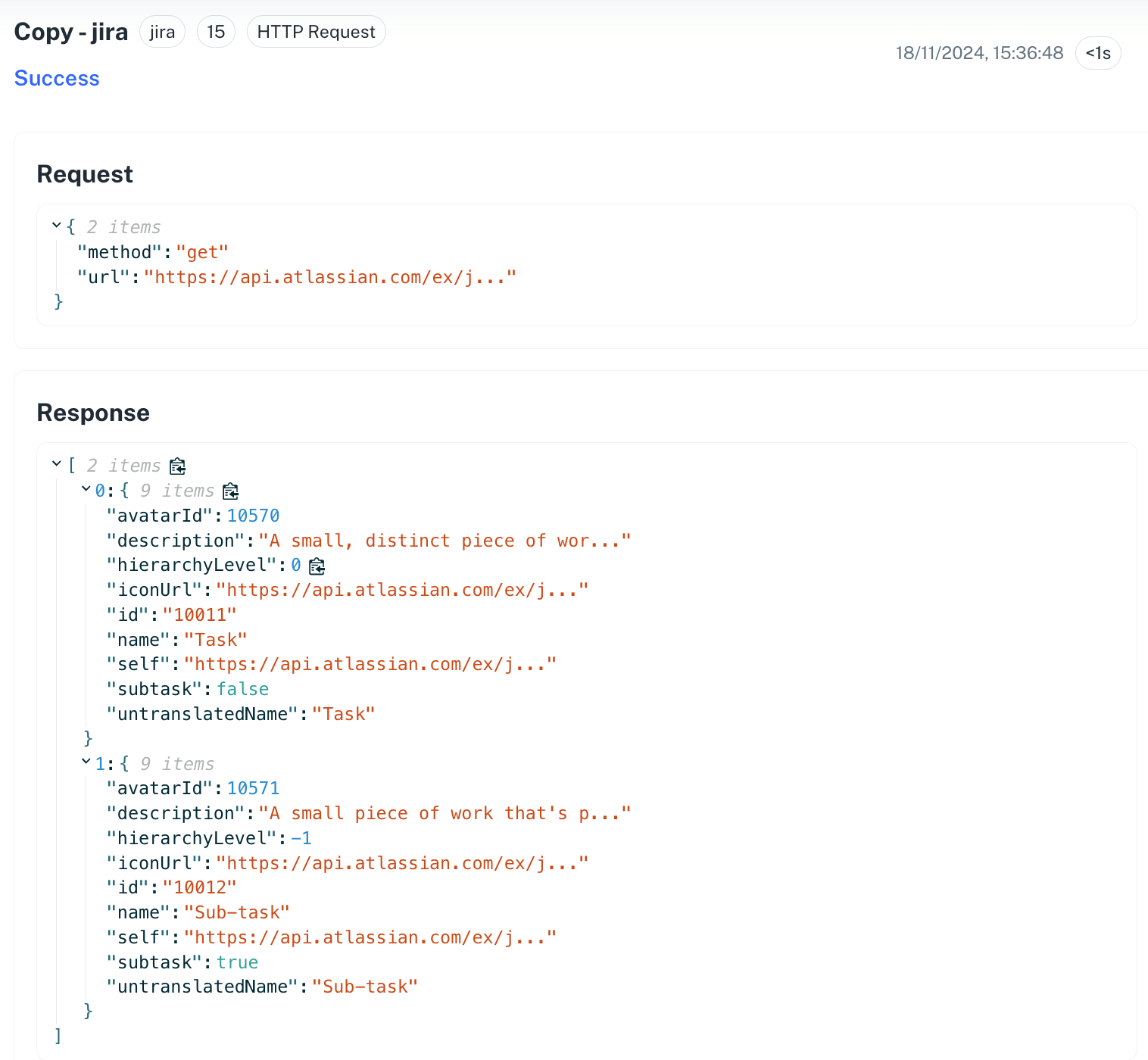
The `.0` form reaches into the first item of an array response. The `response:0.name` form returns the `name` field of the first item.
### Use a tested response as a variable
When you run a test on a node, its response fields appear as named variables in the **Insert Variable** picker. These follow the format `.`, for example `4.id`.
Open the downstream node and click the input field where you need the variable.
In the **Insert Variable** modal, open the **Nodes** tab and expand the upstream node to see its response fields.
If the response structure of a node changes (for example, because you sent a different input payload), run the test again. The picker refreshes to the new shape.
### Environment variables
Environment variables are workspace-scoped values your workflows and integrations reference by name at runtime. Set them once on the [Environment Variables](/v3/platform/platform-settings/workspace-settings/environment-variables) page and Refold substitutes the current workspace's value wherever a workflow references it.
Open the page from **Settings > Organization > Environment Variables**. Typical uses include API endpoints, region codes, feature flags, default tokens, and anything else that should vary between environments without editing the workflow itself.
Environment variables come in three scopes:
| Scope | Where it applies | Typical content |
| ------------------ | --------------------------------------------------- | ------------------------------------------------------------------- |
| Global (workspace) | All workflows and integrations in the workspace | `COMPANY_NAME`, `SUPPORT_EMAIL`, `API_BASE_URL`, `DEFAULT_TIMEZONE` |
| Integration | A specific integration, can vary per linked account | `SALESFORCE_API_VERSION`, `HUBSPOT_PORTAL_ID` |
| Workflow | A single workflow's execution context | `execution_id`, `start_time`, `processed_count` |
More-specific scopes override less-specific ones, so a workflow-scoped variable wins over a workspace-level one with the same name.
#### Create a variable
Go to **Settings > Variables** in your Refold dashboard.
Click **Add Variable** and provide a name and value.
Select global, integration-specific, or workflow-specific.
Mark sensitive variables (API keys, passwords, tokens) as **secure** to encrypt their values.
#### Naming conventions
Use `ALL_CAPS_SNAKE_CASE` with descriptive prefixes so variables stay organized as the list grows. Names are case-sensitive.
```text Good names theme={null}
API_BASE_URL
SALESFORCE_CLIENT_ID
WEBHOOK_SECRET_KEY
MAX_RETRY_ATTEMPTS
DEFAULT_TIMEOUT_MS
```
```text Environment-prefixed theme={null}
PROD_DATABASE_URL
DEV_DATABASE_URL
STAGING_API_KEY
```
```text Grouped by purpose theme={null}
AUTH_SALESFORCE_CLIENT_ID
AUTH_HUBSPOT_API_KEY
API_SALESFORCE_BASE_URL
API_HUBSPOT_BASE_URL
CONFIG_MAX_RETRIES
CONFIG_TIMEOUT_MS
CONFIG_BATCH_SIZE
```
#### Secure vs non-secure
Always mark sensitive variables as secure. Secure variables are encrypted with AES-256, never stored in plain text, and not visible in logs or the UI.
```text Secure (encrypted) theme={null}
SALESFORCE_CLIENT_SECRET
DATABASE_PASSWORD
WEBHOOK_SIGNING_KEY
OAUTH_REFRESH_TOKEN
```
```text Non-secure (visible) theme={null}
API_BASE_URL
DEFAULT_TIMEOUT
MAX_RETRIES
ENVIRONMENT_NAME
```
Secure variables are encrypted at rest and in transit. Access requires appropriate user permissions and API key scopes.
#### Access control
Refold controls who can view and modify variables by role:
* **Admin**: full access to all variables.
* **Developer**: view and modify non-secure variables.
* **Viewer**: read-only access to non-secure variables.
#### Audit logging
Every variable access and modification is logged. Each entry includes the timestamp, event type, user, variable name, workflow, and execution.
```json theme={null}
{
"timestamp": "2024-01-15T10:30:00Z",
"event": "variable.accessed",
"user_id": "user_123",
"variable_name": "API_BASE_URL",
"workflow_id": "workflow_456",
"execution_id": "exec_789"
}
```
### Templating tokens
Beyond workflow data and environment variables, the templating engine exposes built-in tokens for instance metadata and linked account data. These are available everywhere templates work: workflow node fields, [API Proxies](/v3/native/configure/developer/api-proxies), and authorization/developer settings.
#### Instance metadata
An *instance* is a single workflow execution run. The engine exposes metadata about that run at runtime:
| Token | Returns |
| ---------------------------------------------- | --------------------------------------------- |
| `{{instance_meta_data.event_name}}` | Name of the event that triggered the workflow |
| `{{instance_meta_data.config_id}}` | The Config id used for this run |
| `{{instance_meta_data.instance_created_time}}` | Start time of the execution |
| `{{instance_meta_data.instance_id}}` | Unique id for this execution instance |
Instance metadata is available inside both workflows and API proxies.
#### Linked account
Linked account variables carry data specific to the end user whose account triggered the workflow:
* **User-Defined Fields (UDFs)**: `{{linked_account.udf.}}`
* **Authorization credentials**: `{{linked_account.auth_credentials.}}`
## Reference a variable
All variables, regardless of category, are referenced with double curly braces.
```text Basic reference theme={null}
{{API_BASE_URL}}
```
```text Fallback value theme={null}
{{API_BASE_URL || 'https://api.example.com'}}
```
```text Environment-prefixed concatenation theme={null}
{{ENVIRONMENT}}_API_KEY
```
```text Nested object access theme={null}
{{user.profile.email}}
```
```text Object property in interpolation theme={null}
{{API_CONFIG.baseUrl}}
```
### Reach into a node's response
Every workflow node returns a response object. Reference it from a downstream node by its node number.
```text Specific property theme={null}
{{node..body.}}
```
```text Entire response body theme={null}
{{node..body}}
```
```text Array index theme={null}
{{node.15.body.0}}
```
```text Field on an indexed item theme={null}
{{node.15.response:0.name}}
```
The `.0` form reaches into the first item of an array response. The `response:0.name` form returns the `name` field of the first item.
### Use a tested response as a variable
When you run a test on a node, its response fields appear as named variables in the **Insert Variable** picker. These follow the format `.`, for example `4.id`.
Open the downstream node and click the input field where you need the variable.
In the **Insert Variable** modal, open the **Nodes** tab and expand the upstream node to see its response fields.
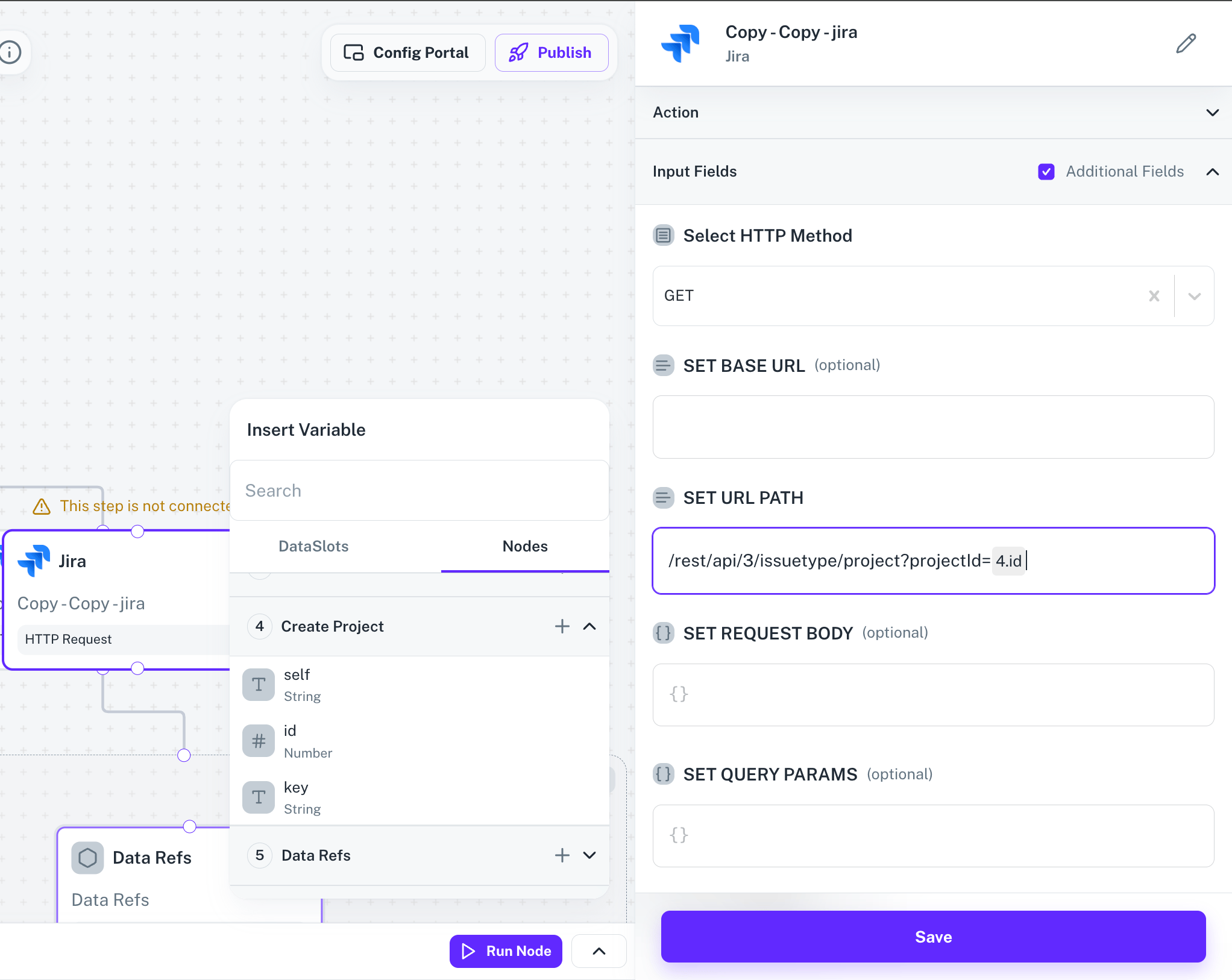 If the upstream node has no response yet, click **Run node** to perform a test execution. Workflow Testing prerequisites must be satisfied first. See [Workflow Testing](/v3/platform/concepts/workflows/testing).
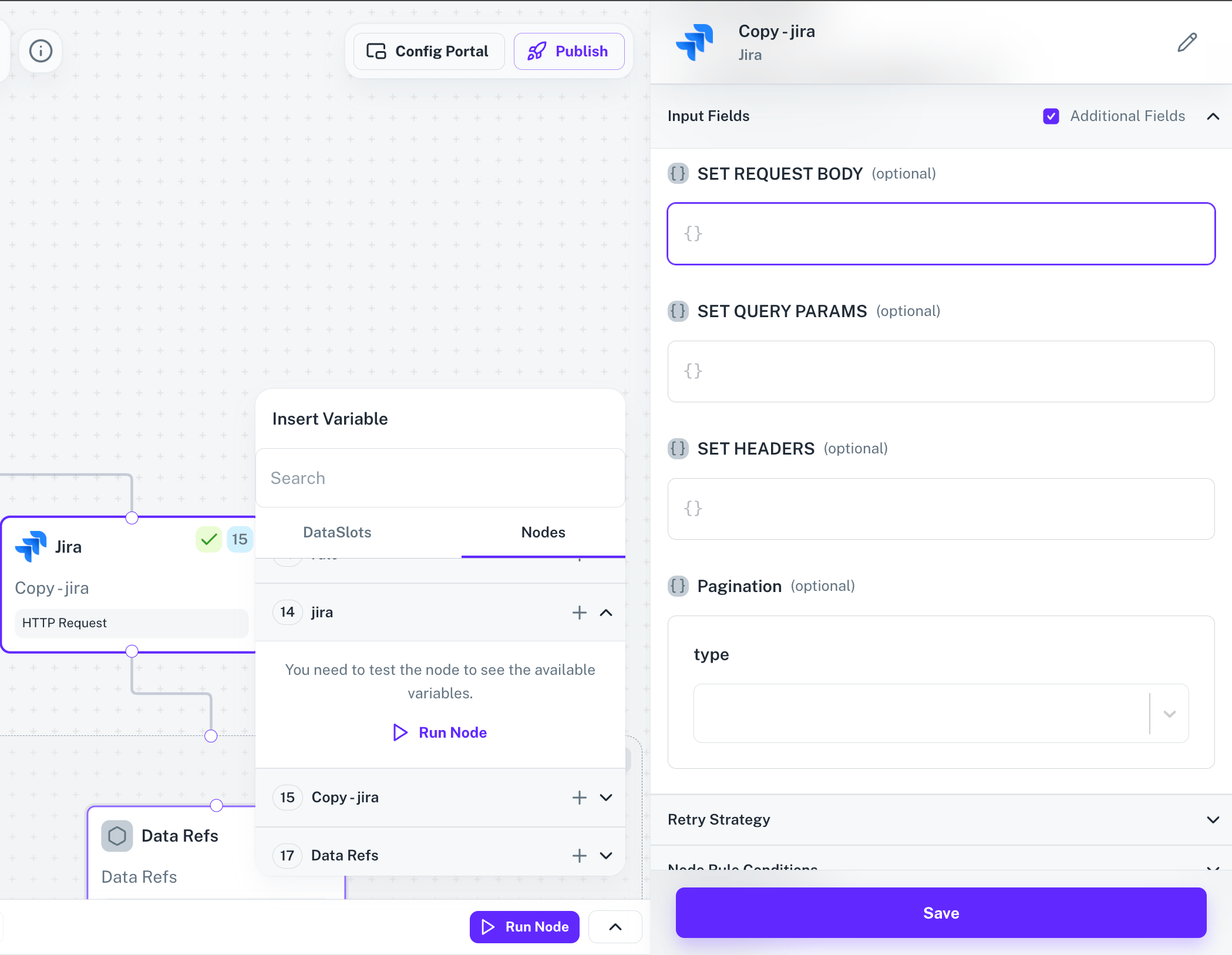 If a node's response structure changes (different input payload, different branch), run the test again with the new payload. The updated structure replaces the old one in downstream pickers.
 ## Where templating works
The `{{ }}` syntax is accepted in three places:
* **Workflow node fields**: any input field on any node in the workflow editor.
* **API Proxies**: URL paths, headers, query parameters, and request bodies.
* **Authorization and developer settings**: connector auth configuration that references linked account data or environment variables.
### HTTP Request node
Substitute variables into the URL, headers, and body of an [HTTP Request](/v3/platform/concepts/workflows/nodes/http) node.
```json URL Configuration theme={null}
{
"url": "{{API_BASE_URL}}/api/v1/users",
"method": "GET",
"headers": {
"Authorization": "Bearer {{ACCESS_TOKEN}}",
"Content-Type": "application/json"
}
}
```
```json Dynamic Headers theme={null}
{
"url": "https://api.salesforce.com/services/data/v{{API_VERSION}}/sobjects/Contact",
"method": "POST",
"headers": {
"Authorization": "Bearer {{SALESFORCE_ACCESS_TOKEN}}",
"Content-Type": "application/json",
"X-Client-Id": "{{SALESFORCE_CLIENT_ID}}"
}
}
```
### Transform node
Embed variables inside [Transform node](/v3/platform/concepts/workflows/nodes/transform) JavaScript via string interpolation.
```javascript theme={null}
const transformedData = {
id: input.id,
name: input.name,
email: input.email,
source: '{{LEAD_SOURCE}}',
environment: '{{ENVIRONMENT}}',
created_at: new Date().toISOString(),
api_version: '{{API_VERSION}}'
};
return transformedData;
```
### Conditional logic
Use variables in conditions, both as raw values and as quoted strings.
```javascript theme={null}
if (input.amount > {{LARGE_DEAL_THRESHOLD}}) {
return {
priority: 'high',
notify_manager: true,
approval_required: true
};
}
if ('{{ENVIRONMENT}}' === 'production') {
return await processProductionData(input);
} else {
return await processTestData(input);
}
```
## Runtime and calculated variables
You can compute values during execution and store them as variables for downstream nodes.
```javascript Current timestamp theme={null}
const currentTime = new Date().toISOString();
const unixTimestamp = Math.floor(Date.now() / 1000);
workflow.setVariable('execution_time', currentTime);
workflow.setVariable('unix_timestamp', unixTimestamp);
```
```javascript User context theme={null}
const userId = workflow.getVariable('linked_account_id');
const userEmail = workflow.getVariable('user.email');
const userPreferences = workflow.getVariable('user.preferences');
const apiEndpoint = `{{API_BASE_URL}}/users/${userId}/data`;
```
```javascript Calculated variable theme={null}
const baseUrl = workflow.getVariable('API_BASE_URL');
const version = workflow.getVariable('API_VERSION');
const fullEndpoint = `${baseUrl}/v${version}/contacts`;
workflow.setVariable('CONTACTS_ENDPOINT', fullEndpoint);
const response = await fetch('{{CONTACTS_ENDPOINT}}');
```
The runtime API is small:
* `workflow.setVariable(name, value)` stores a value.
* `workflow.getVariable(name)` retrieves it.
Stored values can be primitives, arrays, or objects.
### Arrays and objects
```javascript Array variables theme={null}
const supportedCountries = ['US', 'CA', 'UK', 'AU'];
workflow.setVariable('SUPPORTED_COUNTRIES', supportedCountries);
if ({{SUPPORTED_COUNTRIES}}.includes(input.country)) {
// Process supported country
}
```
```javascript Object variables theme={null}
const apiConfig = {
baseUrl: '{{API_BASE_URL}}',
version: '{{API_VERSION}}',
timeout: {{API_TIMEOUT}},
retries: {{MAX_RETRIES}}
};
workflow.setVariable('API_CONFIG', apiConfig);
const endpoint = `{{API_CONFIG.baseUrl}}/v{{API_CONFIG.version}}/data`;
```
### Workflow execution context
A few variables are populated automatically for every run:
| Token | Meaning |
| --------------------- | ---------------------------------------- |
| `{{execution_id}}` | Unique id for the current run |
| `{{start_time}}` | When the execution began |
| `{{triggered_by}}` | The user or event that triggered the run |
| `{{input_data}}` | The trigger payload |
| `{{processed_count}}` | Intermediate counter you can update |
| `{{error_count}}` | Intermediate error tally |
| `{{last_sync_time}}` | Timestamp from a prior sync step |
## Multi-environment setup
A common pattern is to prefix variables with `DEV_`, `STAGING_`, and `PROD_`, then read the active environment from an `ENVIRONMENT` variable.
```bash Development theme={null}
DEV_API_BASE_URL=https://dev-api.example.com
DEV_DATABASE_URL=postgresql://dev-db:5432/cobalt_dev
DEV_LOG_LEVEL=debug
DEV_WEBHOOK_URL=https://dev-webhook.example.com
```
```bash Staging theme={null}
STAGING_API_BASE_URL=https://staging-api.example.com
STAGING_DATABASE_URL=postgresql://staging-db:5432/cobalt_staging
STAGING_LOG_LEVEL=info
STAGING_WEBHOOK_URL=https://staging-webhook.example.com
```
```bash Production theme={null}
PROD_API_BASE_URL=https://api.example.com
PROD_DATABASE_URL=postgresql://prod-db:5432/cobalt_prod
PROD_LOG_LEVEL=error
PROD_WEBHOOK_URL=https://webhook.example.com
```
Detect the active environment and look up prefixed variables dynamically:
```javascript theme={null}
const environment = workflow.getVariable('ENVIRONMENT') || 'development';
const apiUrl = workflow.getVariable(`${environment.toUpperCase()}_API_BASE_URL`);
const dbUrl = workflow.getVariable(`${environment.toUpperCase()}_DATABASE_URL`);
const logLevel = workflow.getVariable(`${environment.toUpperCase()}_LOG_LEVEL`);
const config = {
apiUrl,
dbUrl,
logLevel,
debug: environment !== 'production'
};
```
## Common patterns and pitfalls
### Validate required variables
Fail fast when a workflow expects variables that are missing or malformed.
```javascript theme={null}
const requiredVars = ['API_KEY', 'BASE_URL', 'CLIENT_ID'];
const missingVars = requiredVars.filter(varName => !workflow.getVariable(varName));
if (missingVars.length > 0) {
throw new Error(`Missing required variables: ${missingVars.join(', ')}`);
}
const apiKey = workflow.getVariable('API_KEY');
if (!apiKey || !apiKey.startsWith('pk_')) {
throw new Error('Invalid API key format');
}
```
### Document variables alongside the workflow
Leave a short header comment in Transform nodes so teammates know what each variable expects.
```javascript theme={null}
/*
* Variables used in this workflow:
* - SALESFORCE_API_VERSION: Salesforce API version (e.g., "58.0")
* - MAX_BATCH_SIZE: Maximum records per batch operation (default: 200)
* - RETRY_ATTEMPTS: Number of retry attempts for failed requests (default: 3)
* - WEBHOOK_SECRET: Secret key for webhook signature validation
*/
```
### Test against multiple configurations
```javascript theme={null}
const testConfigs = [
{ ENVIRONMENT: 'development', API_BASE_URL: 'https://dev-api.example.com' },
{ ENVIRONMENT: 'staging', API_BASE_URL: 'https://staging-api.example.com' },
{ ENVIRONMENT: 'production', API_BASE_URL: 'https://api.example.com' }
];
testConfigs.forEach(config => {
testWorkflow(config);
});
```
### Troubleshooting
The workflow fails with a "Variable not found" error.
* Check the variable name's spelling and case (names are case-sensitive).
* Verify the scope (global vs integration-specific vs workflow).
* Confirm the variable exists in the current environment.
* Check permissions and access rights for the calling role.
Old values persist after you edited a variable.
* Clear the workflow cache if you updated the variable recently.
* Check whether a more-specific scope is overriding the value.
* Verify the workflow isn't overwriting the variable mid-run via `workflow.setVariable`.
* Restart the workflow execution to pick up the new value.
You cannot view or use a secure variable.
* Check the user's permissions for secure variable access.
* Verify the API key has the required scopes.
* Confirm the variable is marked secure in settings.
* Contact an administrator if you need elevated access.
A downstream node can't see fields from an upstream node.
* Run a test execution on the upstream node via **Input/Output > Run node**.
* If the response shape changed, re-run the test with the new input payload.
* Confirm Workflow Testing prerequisites are met.
## Next steps
Deep reference on `{{ }}` syntax, operators, and helpers.
Manage workspace-scoped variables in Settings.
Run node tests so their responses become variables.
## Where templating works
The `{{ }}` syntax is accepted in three places:
* **Workflow node fields**: any input field on any node in the workflow editor.
* **API Proxies**: URL paths, headers, query parameters, and request bodies.
* **Authorization and developer settings**: connector auth configuration that references linked account data or environment variables.
### HTTP Request node
Substitute variables into the URL, headers, and body of an [HTTP Request](/v3/platform/concepts/workflows/nodes/http) node.
```json URL Configuration theme={null}
{
"url": "{{API_BASE_URL}}/api/v1/users",
"method": "GET",
"headers": {
"Authorization": "Bearer {{ACCESS_TOKEN}}",
"Content-Type": "application/json"
}
}
```
```json Dynamic Headers theme={null}
{
"url": "https://api.salesforce.com/services/data/v{{API_VERSION}}/sobjects/Contact",
"method": "POST",
"headers": {
"Authorization": "Bearer {{SALESFORCE_ACCESS_TOKEN}}",
"Content-Type": "application/json",
"X-Client-Id": "{{SALESFORCE_CLIENT_ID}}"
}
}
```
### Transform node
Embed variables inside [Transform node](/v3/platform/concepts/workflows/nodes/transform) JavaScript via string interpolation.
```javascript theme={null}
const transformedData = {
id: input.id,
name: input.name,
email: input.email,
source: '{{LEAD_SOURCE}}',
environment: '{{ENVIRONMENT}}',
created_at: new Date().toISOString(),
api_version: '{{API_VERSION}}'
};
return transformedData;
```
### Conditional logic
Use variables in conditions, both as raw values and as quoted strings.
```javascript theme={null}
if (input.amount > {{LARGE_DEAL_THRESHOLD}}) {
return {
priority: 'high',
notify_manager: true,
approval_required: true
};
}
if ('{{ENVIRONMENT}}' === 'production') {
return await processProductionData(input);
} else {
return await processTestData(input);
}
```
## Runtime and calculated variables
You can compute values during execution and store them as variables for downstream nodes.
```javascript Current timestamp theme={null}
const currentTime = new Date().toISOString();
const unixTimestamp = Math.floor(Date.now() / 1000);
workflow.setVariable('execution_time', currentTime);
workflow.setVariable('unix_timestamp', unixTimestamp);
```
```javascript User context theme={null}
const userId = workflow.getVariable('linked_account_id');
const userEmail = workflow.getVariable('user.email');
const userPreferences = workflow.getVariable('user.preferences');
const apiEndpoint = `{{API_BASE_URL}}/users/${userId}/data`;
```
```javascript Calculated variable theme={null}
const baseUrl = workflow.getVariable('API_BASE_URL');
const version = workflow.getVariable('API_VERSION');
const fullEndpoint = `${baseUrl}/v${version}/contacts`;
workflow.setVariable('CONTACTS_ENDPOINT', fullEndpoint);
const response = await fetch('{{CONTACTS_ENDPOINT}}');
```
The runtime API is small:
* `workflow.setVariable(name, value)` stores a value.
* `workflow.getVariable(name)` retrieves it.
Stored values can be primitives, arrays, or objects.
### Arrays and objects
```javascript Array variables theme={null}
const supportedCountries = ['US', 'CA', 'UK', 'AU'];
workflow.setVariable('SUPPORTED_COUNTRIES', supportedCountries);
if ({{SUPPORTED_COUNTRIES}}.includes(input.country)) {
// Process supported country
}
```
```javascript Object variables theme={null}
const apiConfig = {
baseUrl: '{{API_BASE_URL}}',
version: '{{API_VERSION}}',
timeout: {{API_TIMEOUT}},
retries: {{MAX_RETRIES}}
};
workflow.setVariable('API_CONFIG', apiConfig);
const endpoint = `{{API_CONFIG.baseUrl}}/v{{API_CONFIG.version}}/data`;
```
### Workflow execution context
A few variables are populated automatically for every run:
| Token | Meaning |
| --------------------- | ---------------------------------------- |
| `{{execution_id}}` | Unique id for the current run |
| `{{start_time}}` | When the execution began |
| `{{triggered_by}}` | The user or event that triggered the run |
| `{{input_data}}` | The trigger payload |
| `{{processed_count}}` | Intermediate counter you can update |
| `{{error_count}}` | Intermediate error tally |
| `{{last_sync_time}}` | Timestamp from a prior sync step |
## Multi-environment setup
A common pattern is to prefix variables with `DEV_`, `STAGING_`, and `PROD_`, then read the active environment from an `ENVIRONMENT` variable.
```bash Development theme={null}
DEV_API_BASE_URL=https://dev-api.example.com
DEV_DATABASE_URL=postgresql://dev-db:5432/cobalt_dev
DEV_LOG_LEVEL=debug
DEV_WEBHOOK_URL=https://dev-webhook.example.com
```
```bash Staging theme={null}
STAGING_API_BASE_URL=https://staging-api.example.com
STAGING_DATABASE_URL=postgresql://staging-db:5432/cobalt_staging
STAGING_LOG_LEVEL=info
STAGING_WEBHOOK_URL=https://staging-webhook.example.com
```
```bash Production theme={null}
PROD_API_BASE_URL=https://api.example.com
PROD_DATABASE_URL=postgresql://prod-db:5432/cobalt_prod
PROD_LOG_LEVEL=error
PROD_WEBHOOK_URL=https://webhook.example.com
```
Detect the active environment and look up prefixed variables dynamically:
```javascript theme={null}
const environment = workflow.getVariable('ENVIRONMENT') || 'development';
const apiUrl = workflow.getVariable(`${environment.toUpperCase()}_API_BASE_URL`);
const dbUrl = workflow.getVariable(`${environment.toUpperCase()}_DATABASE_URL`);
const logLevel = workflow.getVariable(`${environment.toUpperCase()}_LOG_LEVEL`);
const config = {
apiUrl,
dbUrl,
logLevel,
debug: environment !== 'production'
};
```
## Common patterns and pitfalls
### Validate required variables
Fail fast when a workflow expects variables that are missing or malformed.
```javascript theme={null}
const requiredVars = ['API_KEY', 'BASE_URL', 'CLIENT_ID'];
const missingVars = requiredVars.filter(varName => !workflow.getVariable(varName));
if (missingVars.length > 0) {
throw new Error(`Missing required variables: ${missingVars.join(', ')}`);
}
const apiKey = workflow.getVariable('API_KEY');
if (!apiKey || !apiKey.startsWith('pk_')) {
throw new Error('Invalid API key format');
}
```
### Document variables alongside the workflow
Leave a short header comment in Transform nodes so teammates know what each variable expects.
```javascript theme={null}
/*
* Variables used in this workflow:
* - SALESFORCE_API_VERSION: Salesforce API version (e.g., "58.0")
* - MAX_BATCH_SIZE: Maximum records per batch operation (default: 200)
* - RETRY_ATTEMPTS: Number of retry attempts for failed requests (default: 3)
* - WEBHOOK_SECRET: Secret key for webhook signature validation
*/
```
### Test against multiple configurations
```javascript theme={null}
const testConfigs = [
{ ENVIRONMENT: 'development', API_BASE_URL: 'https://dev-api.example.com' },
{ ENVIRONMENT: 'staging', API_BASE_URL: 'https://staging-api.example.com' },
{ ENVIRONMENT: 'production', API_BASE_URL: 'https://api.example.com' }
];
testConfigs.forEach(config => {
testWorkflow(config);
});
```
### Troubleshooting
The workflow fails with a "Variable not found" error.
* Check the variable name's spelling and case (names are case-sensitive).
* Verify the scope (global vs integration-specific vs workflow).
* Confirm the variable exists in the current environment.
* Check permissions and access rights for the calling role.
Old values persist after you edited a variable.
* Clear the workflow cache if you updated the variable recently.
* Check whether a more-specific scope is overriding the value.
* Verify the workflow isn't overwriting the variable mid-run via `workflow.setVariable`.
* Restart the workflow execution to pick up the new value.
You cannot view or use a secure variable.
* Check the user's permissions for secure variable access.
* Verify the API key has the required scopes.
* Confirm the variable is marked secure in settings.
* Contact an administrator if you need elevated access.
A downstream node can't see fields from an upstream node.
* Run a test execution on the upstream node via **Input/Output > Run node**.
* If the response shape changed, re-run the test with the new input payload.
* Confirm Workflow Testing prerequisites are met.
## Next steps
Deep reference on `{{ }}` syntax, operators, and helpers.
Manage workspace-scoped variables in Settings.
Run node tests so their responses become variables.