> ## Documentation Index
> Fetch the complete documentation index at: https://cobalt-55-abhishek.mintlify.site/llms.txt
> Use this file to discover all available pages before exploring further.
# Data Refs
> Reference objects that share lookup data across workflow executions.
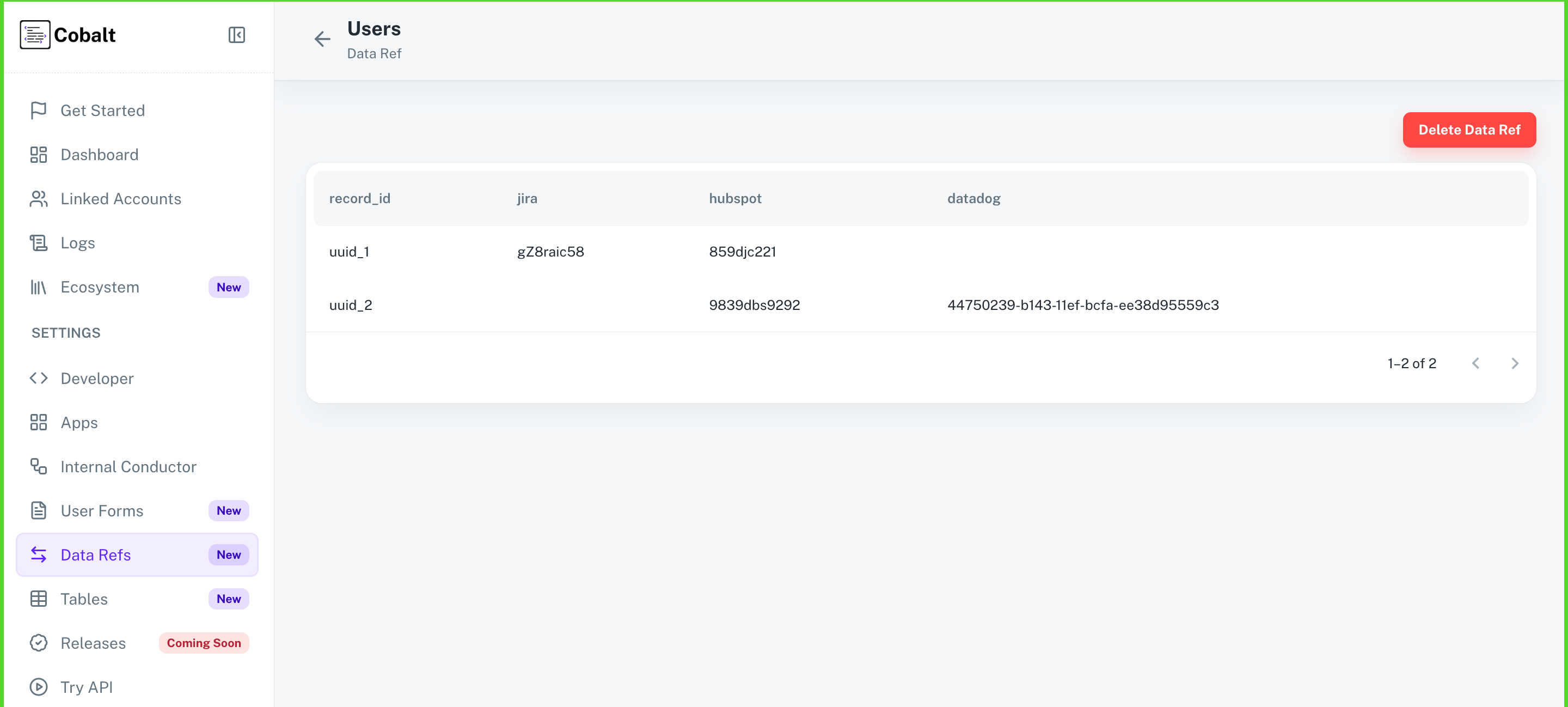
Data Refs are named records that map one Refold Record ID to one or more External IDs from third-party integrations, so workflows can look up the same entity across systems between executions. Use them to unify a user, organization, or any other entity that exists under different IDs in Salesforce, HubSpot, Slack, and the other apps you connect.
Each [Linked Account](/v3/platform/concepts/linked-account) keeps its own Data Refs, even when names match across accounts, so one customer's mappings never leak into another's.
## How a Data Ref is shaped
A Data Ref is a named collection of records scoped to a single Linked Account. Each record links:
* **Record ID**: the canonical ID you create and own inside Refold. This is the key you control.
* **External IDs**: one or more IDs for that same entity inside connected integrations (for example, a Salesforce contact ID and a HubSpot contact ID for the same person).
A single Record ID can map to multiple External IDs across different integrations, which is how a Data Ref unifies an entity that lives in several systems at once.
 Refold was previously branded as Cobalt. Some image assets and external links may still reference `gocobalt.io` while the migration completes.
## Create a Data Ref
You don't need to create a Data Ref by hand before using it. The first time a workflow writes to a Data Ref that doesn't yet exist for the Linked Account, Refold creates it for you.
You can also browse, inspect, and manage Data Refs from the dashboard:
Go to **Settings** > [Data Refs](https://app.refold.ai/datarefs).
Each row shows the Data Ref **Name**, the **Associated Linked Account ID**, and the records inside it.
Use the Linked Account filter to scope the view to a single customer's refs. Refs with the same name on different Linked Accounts are independent.
## Read from a Data Ref
You read from a Data Ref inside a [workflow](/v3/platform/concepts/workflows/overview) by adding the Data Ref node and choosing one of the lookup actions. Reads work in both directions, so you can start from either side of the mapping.
Looks up a Record ID and returns an array of every External ID associated with it across integrations. Use this when your workflow knows the canonical Refold ID and needs to find the matching IDs in connected apps.
Looks up an External ID from a specific integration and returns the Record ID it belongs to. Use this when an event arrives from a third-party app (for example, a webhook with a Salesforce contact ID) and you need to resolve it back to your canonical entity.
The values returned by these actions become available as variables on the node's output and can be referenced by downstream nodes the same way as any other workflow variable.
## Update a Data Ref
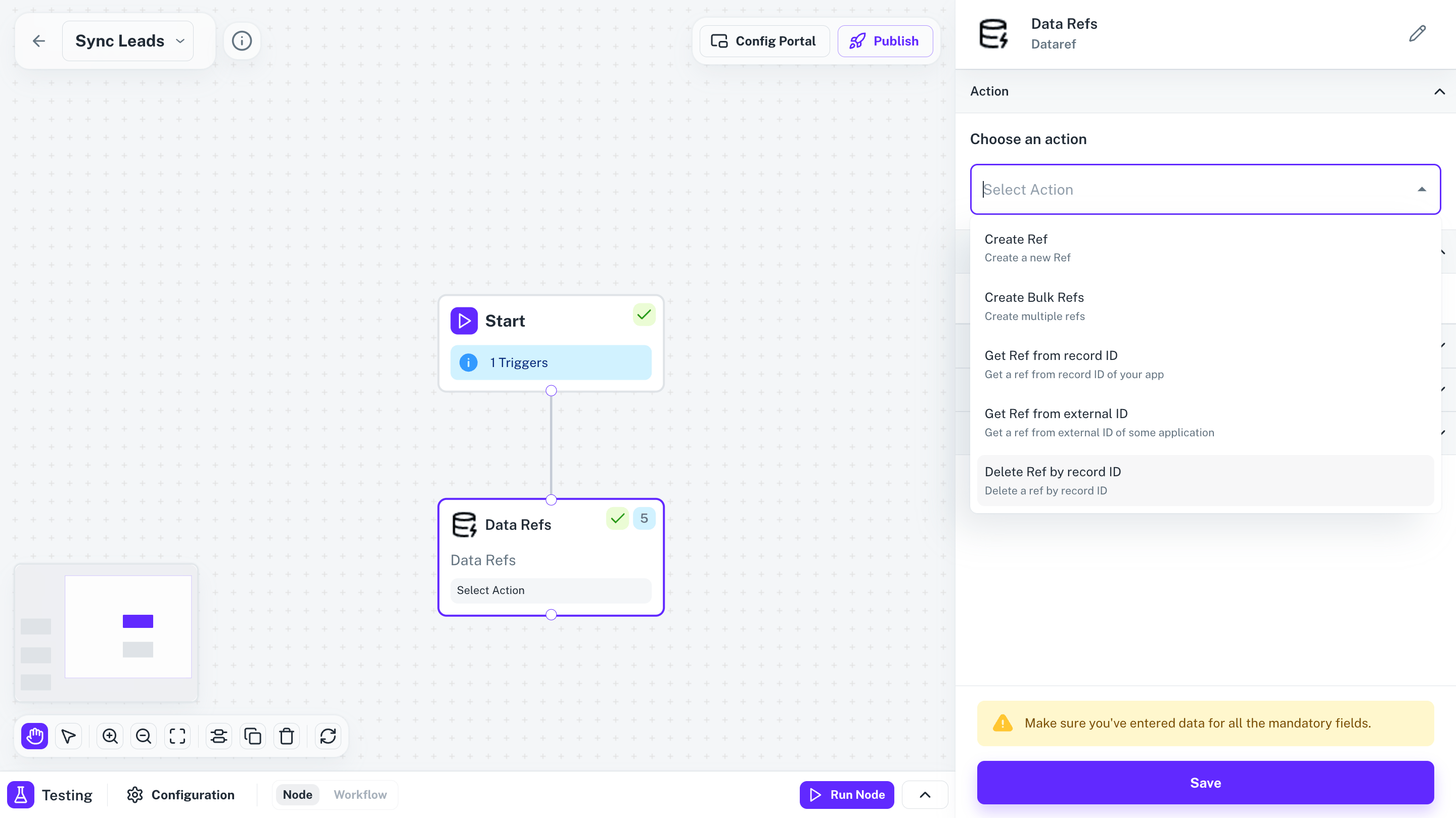
Writes are also performed from the Data Ref node. Three actions cover the lifecycle.
| Action | What it does | Auto-create behavior |
| --------------------------- | ---------------------------------------------------------------------------- | ------------------------------------------------------------------------------------------------- |
| **Create Ref** | Adds a single record (Record ID plus its External ID mapping) to a Data Ref. | If the Data Ref doesn't exist for the Linked Account, Refold creates it and adds the record. |
| **Create Bulk Refs** | Adds many records to a Data Ref in a single call. | If the Data Ref doesn't exist for the Linked Account, Refold creates it and adds all the records. |
| **Delete Ref by Record ID** | Removes a record from a Data Ref using its Record ID. | No auto-create. The Data Ref must already exist. |
Each action runs against the Linked Account that the workflow is executing for, so writes from one customer's run never modify another customer's refs.
Refold was previously branded as Cobalt. Some image assets and external links may still reference `gocobalt.io` while the migration completes.
## Create a Data Ref
You don't need to create a Data Ref by hand before using it. The first time a workflow writes to a Data Ref that doesn't yet exist for the Linked Account, Refold creates it for you.
You can also browse, inspect, and manage Data Refs from the dashboard:
Go to **Settings** > [Data Refs](https://app.refold.ai/datarefs).
Each row shows the Data Ref **Name**, the **Associated Linked Account ID**, and the records inside it.
Use the Linked Account filter to scope the view to a single customer's refs. Refs with the same name on different Linked Accounts are independent.
## Read from a Data Ref
You read from a Data Ref inside a [workflow](/v3/platform/concepts/workflows/overview) by adding the Data Ref node and choosing one of the lookup actions. Reads work in both directions, so you can start from either side of the mapping.
Looks up a Record ID and returns an array of every External ID associated with it across integrations. Use this when your workflow knows the canonical Refold ID and needs to find the matching IDs in connected apps.
Looks up an External ID from a specific integration and returns the Record ID it belongs to. Use this when an event arrives from a third-party app (for example, a webhook with a Salesforce contact ID) and you need to resolve it back to your canonical entity.
The values returned by these actions become available as variables on the node's output and can be referenced by downstream nodes the same way as any other workflow variable.
## Update a Data Ref
Writes are also performed from the Data Ref node. Three actions cover the lifecycle.
| Action | What it does | Auto-create behavior |
| --------------------------- | ---------------------------------------------------------------------------- | ------------------------------------------------------------------------------------------------- |
| **Create Ref** | Adds a single record (Record ID plus its External ID mapping) to a Data Ref. | If the Data Ref doesn't exist for the Linked Account, Refold creates it and adds the record. |
| **Create Bulk Refs** | Adds many records to a Data Ref in a single call. | If the Data Ref doesn't exist for the Linked Account, Refold creates it and adds all the records. |
| **Delete Ref by Record ID** | Removes a record from a Data Ref using its Record ID. | No auto-create. The Data Ref must already exist. |
Each action runs against the Linked Account that the workflow is executing for, so writes from one customer's run never modify another customer's refs.
 ## When to use Data Refs
Resolve the same user, contact, or company across Salesforce, HubSpot, Slack, and other apps without rebuilding the mapping inside every workflow.
Store the result of an expensive lookup (for example, the ID of a record you just created) and read it back on the next execution instead of querying the integration again.
Maintain a single source of truth for IDs that multiple workflows need (welcome flow, sync flow, off-boarding flow) so updates propagate everywhere.
Track per-entity state between runs by keeping the canonical Record ID stable while updating its External ID mappings as new systems come online.
## Limits and behavior
Data Refs are scoped per Linked Account. Two Linked Accounts can both have a Data Ref named `Users` and the records inside them are completely separate.
* **Per-account isolation.** Refs are never shared across Linked Accounts.
* **Auto-create on write.** `Create Ref` and `Create Bulk Refs` create the named Data Ref on the fly if it doesn't already exist for the Linked Account.
* **No auto-create on delete.** `Delete Ref by Record ID` requires the Data Ref to exist.
* **Stable Record IDs.** Record IDs are the keys you own. Keep them stable across writes so reads stay consistent.
## Examples
1. A Salesforce webhook fires with `contactId = 003xx000004TmiQAAS`.
2. Add a **Get Ref from External ID** action on a Data Ref named `Users`, passing the Salesforce contact ID as the External ID.
3. The node returns the matching `Record ID`. Use it as the canonical key in every downstream node (logging, notifications, syncing to other apps).
1. A user signs up in your product. You generate a Record ID (for example, your internal user UUID).
2. As your workflow creates the matching entity in Salesforce, HubSpot, and Slack, add a **Create Ref** action after each create-step to record the new External ID against the same Record ID in the `Users` Data Ref.
3. Later workflows can call **Get Ref from Record ID** to fetch the full list of External IDs in one call.
1. After a customer connects their Salesforce account, run a one-time backfill workflow that lists every contact.
2. Use **Create Bulk Refs** to write all the Record ID + External ID pairs into a `Users` Data Ref in a single action instead of looping over Create Ref.
3. If `Users` doesn't exist yet for this Linked Account, the bulk action creates it.
1. A delete event arrives for a Record ID.
2. Call **Delete Ref by Record ID** on the `Users` Data Ref to remove the mapping so stale IDs aren't returned by future lookups.
## Next steps
Learn how workflow nodes pass data between steps and how Data Ref outputs are consumed downstream.
Understand the per-customer scope that Data Refs live inside.
Open the dashboard to inspect, filter, and edit your Data Refs.
See how to reference Data Ref outputs from later workflow nodes.
## When to use Data Refs
Resolve the same user, contact, or company across Salesforce, HubSpot, Slack, and other apps without rebuilding the mapping inside every workflow.
Store the result of an expensive lookup (for example, the ID of a record you just created) and read it back on the next execution instead of querying the integration again.
Maintain a single source of truth for IDs that multiple workflows need (welcome flow, sync flow, off-boarding flow) so updates propagate everywhere.
Track per-entity state between runs by keeping the canonical Record ID stable while updating its External ID mappings as new systems come online.
## Limits and behavior
Data Refs are scoped per Linked Account. Two Linked Accounts can both have a Data Ref named `Users` and the records inside them are completely separate.
* **Per-account isolation.** Refs are never shared across Linked Accounts.
* **Auto-create on write.** `Create Ref` and `Create Bulk Refs` create the named Data Ref on the fly if it doesn't already exist for the Linked Account.
* **No auto-create on delete.** `Delete Ref by Record ID` requires the Data Ref to exist.
* **Stable Record IDs.** Record IDs are the keys you own. Keep them stable across writes so reads stay consistent.
## Examples
1. A Salesforce webhook fires with `contactId = 003xx000004TmiQAAS`.
2. Add a **Get Ref from External ID** action on a Data Ref named `Users`, passing the Salesforce contact ID as the External ID.
3. The node returns the matching `Record ID`. Use it as the canonical key in every downstream node (logging, notifications, syncing to other apps).
1. A user signs up in your product. You generate a Record ID (for example, your internal user UUID).
2. As your workflow creates the matching entity in Salesforce, HubSpot, and Slack, add a **Create Ref** action after each create-step to record the new External ID against the same Record ID in the `Users` Data Ref.
3. Later workflows can call **Get Ref from Record ID** to fetch the full list of External IDs in one call.
1. After a customer connects their Salesforce account, run a one-time backfill workflow that lists every contact.
2. Use **Create Bulk Refs** to write all the Record ID + External ID pairs into a `Users` Data Ref in a single action instead of looping over Create Ref.
3. If `Users` doesn't exist yet for this Linked Account, the bulk action creates it.
1. A delete event arrives for a Record ID.
2. Call **Delete Ref by Record ID** on the `Users` Data Ref to remove the mapping so stale IDs aren't returned by future lookups.
## Next steps
Learn how workflow nodes pass data between steps and how Data Ref outputs are consumed downstream.
Understand the per-customer scope that Data Refs live inside.
Open the dashboard to inspect, filter, and edit your Data Refs.
See how to reference Data Ref outputs from later workflow nodes.