> ## Documentation Index
> Fetch the complete documentation index at: https://cobalt-55-abhishek.mintlify.site/llms.txt
> Use this file to discover all available pages before exploring further.
# Get Data with API Proxies
> In this, you'll learn how you can fetch data from the workflows by creating Custom Actions or API Proxies.
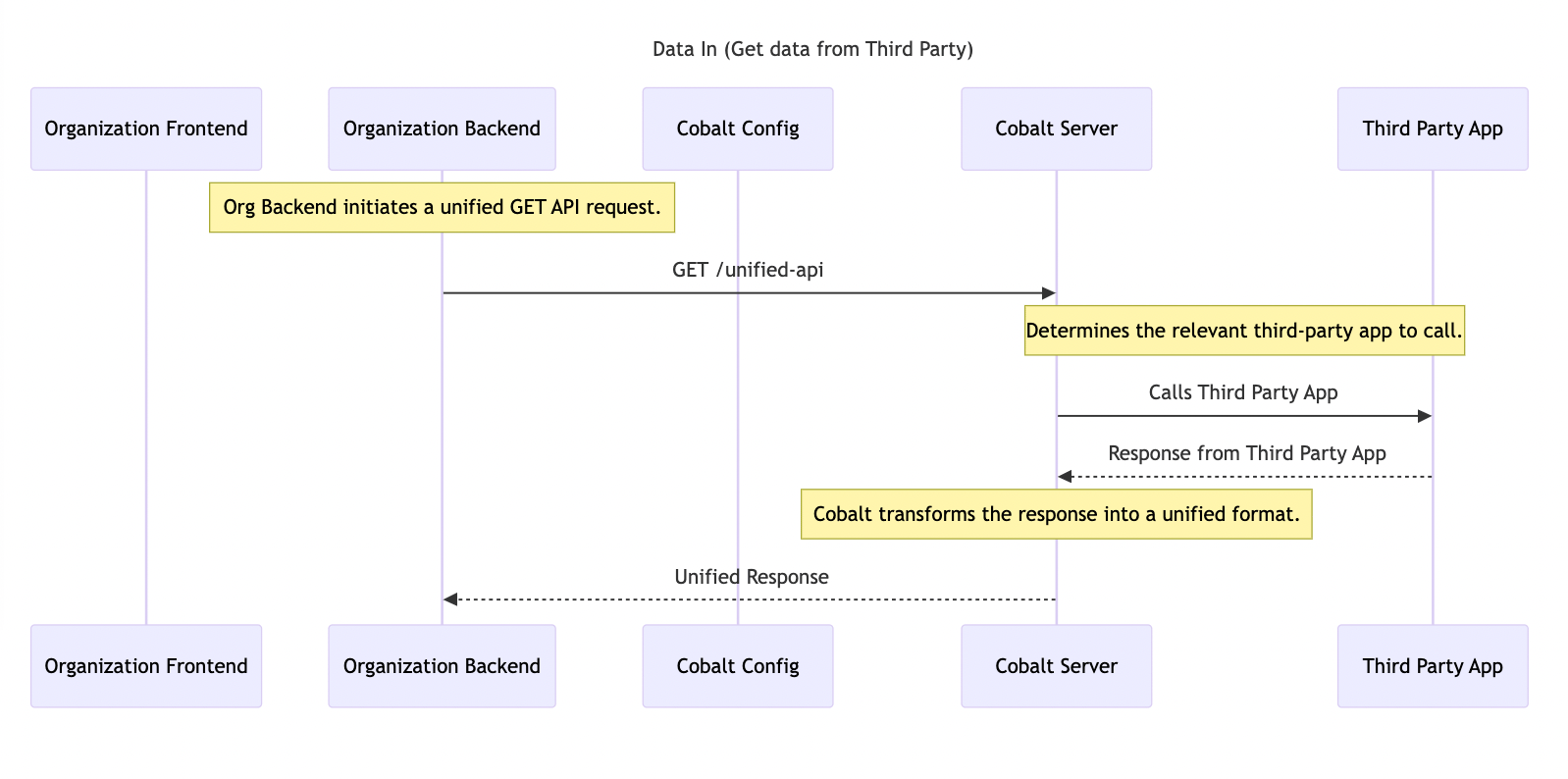 **API Proxies** or **Custom Actions**, allows your organization to integrate your services better with the workflows in Cobalt. These help you develop Custom Actions for your workflows which can be used to fetch data of the workflows to your system.
You can learn in detail about API Proxies in our guide here.
## Create API Proxy
Follow these steps to create an API Proxy:
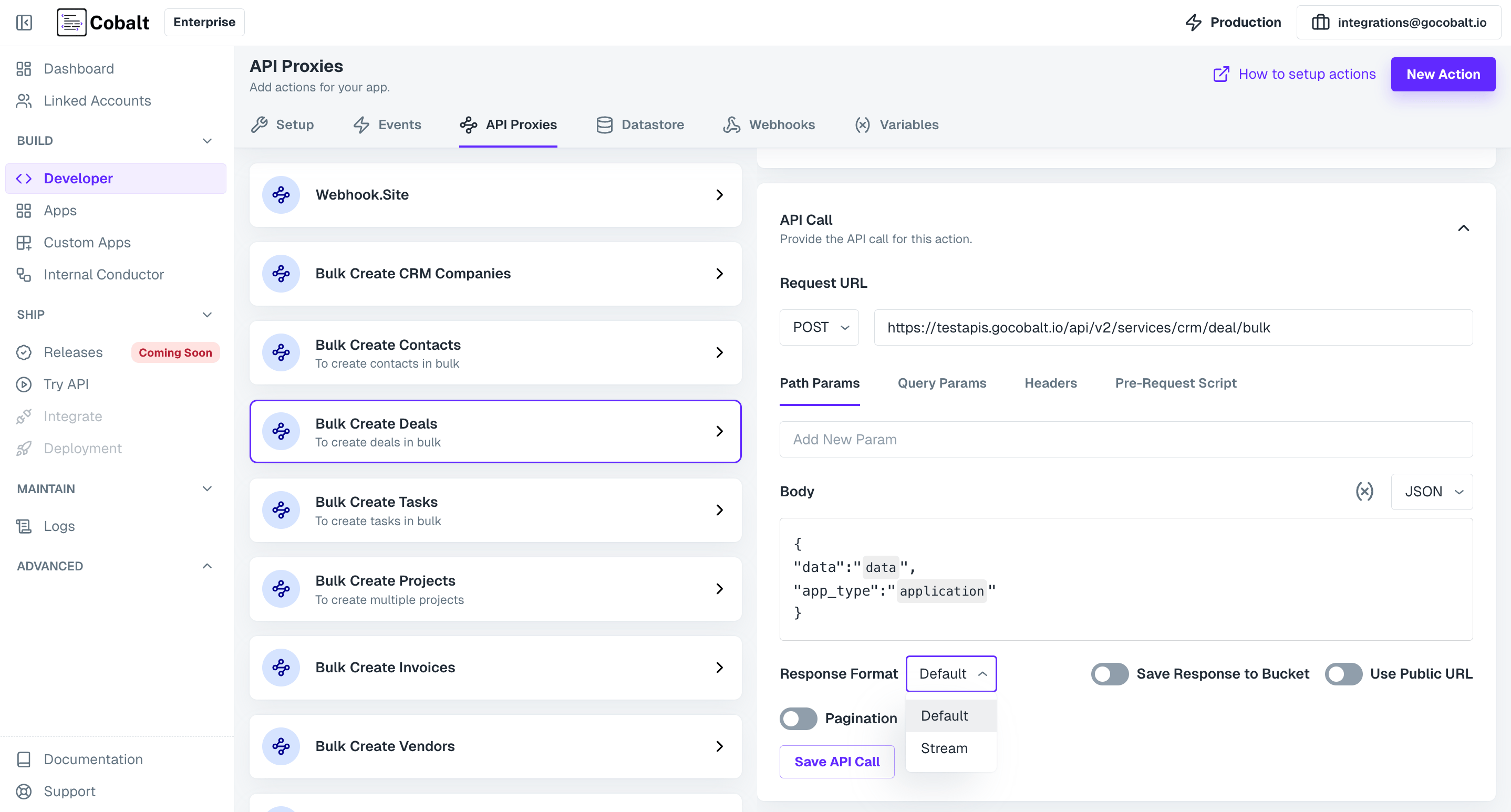
1. **Create Action** : - Navigate to `Developer` in Cobalt > `API Proxies` > Click on the `New Action` button > provide a `Name` and `Description` for the API Proxy > Click on the `Create Action` button.
2. **Configure the Fields** : Click on the `Fields` tab > Click `Edit` > And add Custom fields for your action.
3. **Configure the API Call** : Click on the `API Call` tab > Click `Edit` > Configure the API call to be executed upon triggering the action by defining HTTP Method, Path Params etc.
**API Proxies** or **Custom Actions**, allows your organization to integrate your services better with the workflows in Cobalt. These help you develop Custom Actions for your workflows which can be used to fetch data of the workflows to your system.
You can learn in detail about API Proxies in our guide here.
## Create API Proxy
Follow these steps to create an API Proxy:
1. **Create Action** : - Navigate to `Developer` in Cobalt > `API Proxies` > Click on the `New Action` button > provide a `Name` and `Description` for the API Proxy > Click on the `Create Action` button.
2. **Configure the Fields** : Click on the `Fields` tab > Click `Edit` > And add Custom fields for your action.
3. **Configure the API Call** : Click on the `API Call` tab > Click `Edit` > Configure the API call to be executed upon triggering the action by defining HTTP Method, Path Params etc.
 ## Checkpoint
Congratulations!! You have created an API Proxy successfully which can be used to read data from the workflows and use it.
## Checkpoint
Congratulations!! You have created an API Proxy successfully which can be used to read data from the workflows and use it.