> ## Documentation Index
> Fetch the complete documentation index at: https://cobalt-55-abhishek.mintlify.site/llms.txt
> Use this file to discover all available pages before exploring further.
# Workflow Testing
> Workflow Testing in Refold enables you to test your workflow's functionality by running it with sample payloads as you build it.
It allows you to:
* Execute multiple test cases for a workflow by modifying the input payload.
* Test and inspect the output values of each workflow node.
* Use the Run Node button at the bottom of each step to execute it for the authenticated Linked Account.
## Pre-requisites for Workflow Testing
Before testing a workflow, ensure the following steps are completed:
Click the `Configuration` button in the workflow editor and select a **[Linked Account](/legacy/concepts/linked_account)** under `Prerequisites` for the workflow.
If the Linked Account is not authenticated with the integration or if its authentication has expired, a warning will appear.
Click the **Authorize Application** button to reauthenticate or establish a connection with the integration.
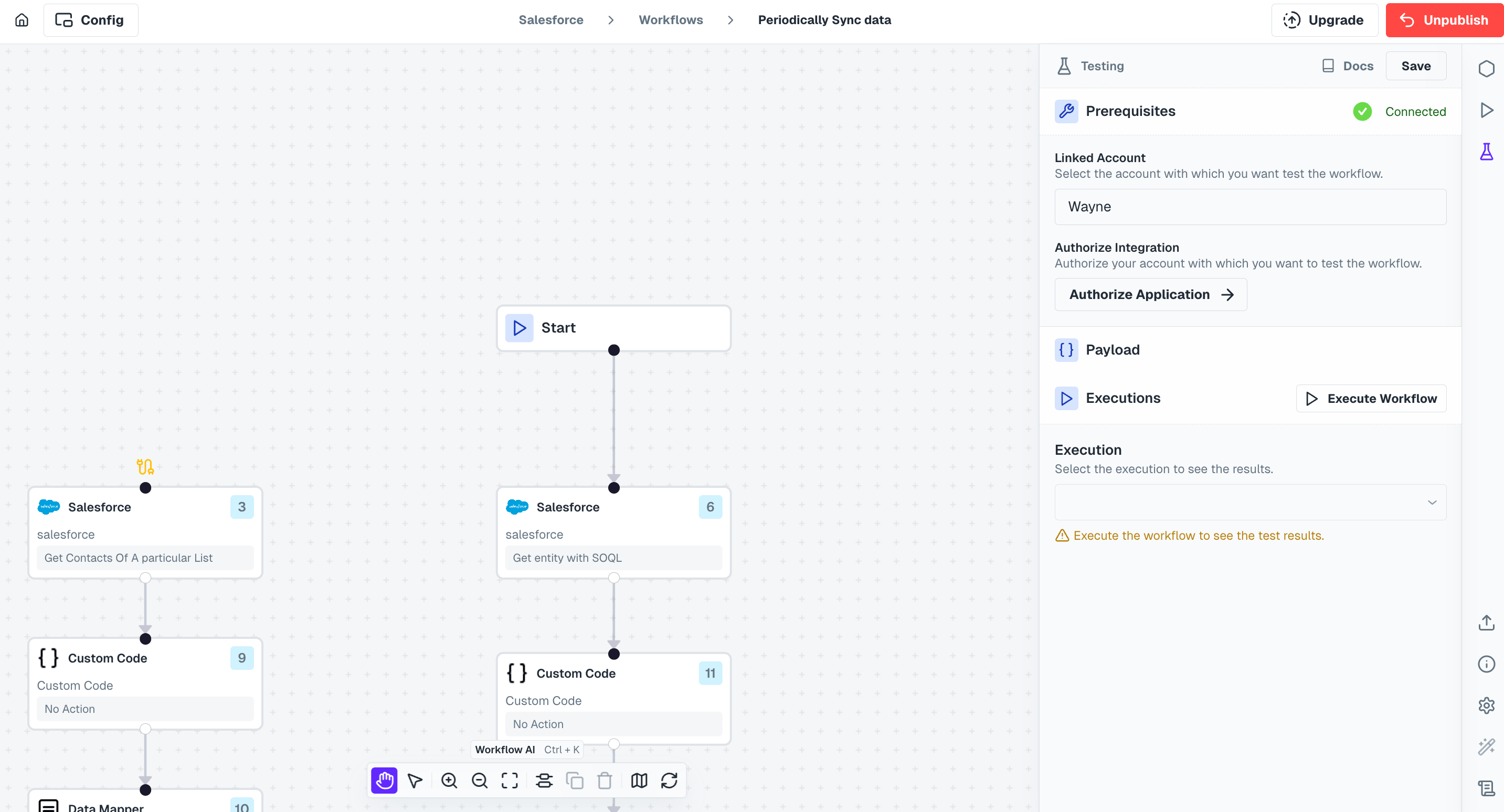 Once authentication is complete, a **Connected** status will be displayed.
Click `Next` to proceed.
Enter a payload with data to be used during workflow testing.
A sample payload will automatically load based on the event trigger defined in the workflow.
Modify the sample payload if necessary to suit your testing requirements.
Once authentication is complete, a **Connected** status will be displayed.
Click `Next` to proceed.
Enter a payload with data to be used during workflow testing.
A sample payload will automatically load based on the event trigger defined in the workflow.
Modify the sample payload if necessary to suit your testing requirements.
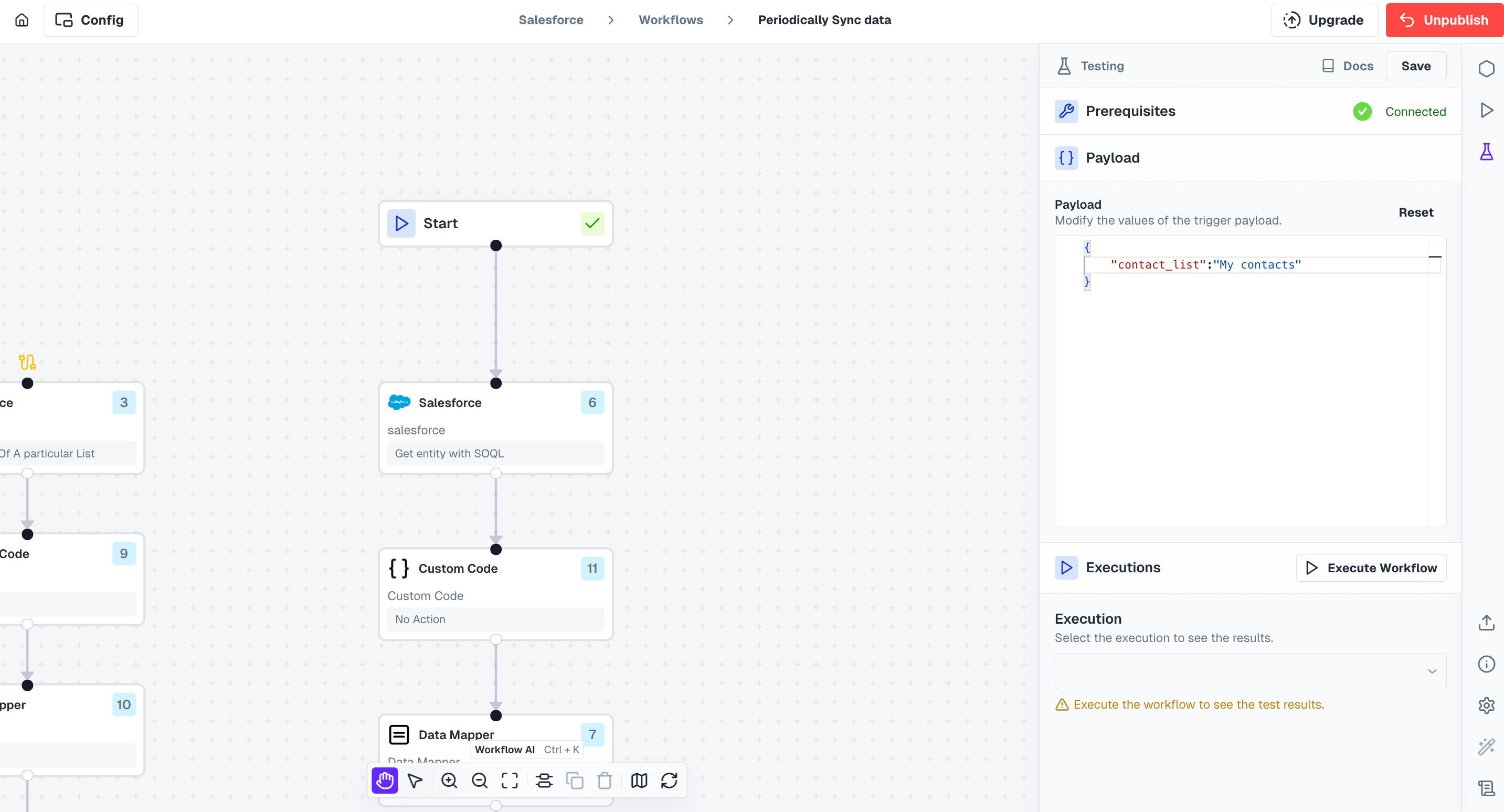 After completing these steps, click the `Save Configuration` button.
Your workflow is now ready for testing.
## Steps to test
Refold provides options for testing both ndividual nodes or the entire workflow.
#### Testing Node
Click on the node you want to test.
At the bottom of the editor, click the `Run Node` button.
Testing for Group Node and Pagination is currently not supported.
Expand the testing modal by clicking the `^` button at the bottom and view the input and output details of the test run under the `Node` tab.
After completing these steps, click the `Save Configuration` button.
Your workflow is now ready for testing.
## Steps to test
Refold provides options for testing both ndividual nodes or the entire workflow.
#### Testing Node
Click on the node you want to test.
At the bottom of the editor, click the `Run Node` button.
Testing for Group Node and Pagination is currently not supported.
Expand the testing modal by clicking the `^` button at the bottom and view the input and output details of the test run under the `Node` tab.
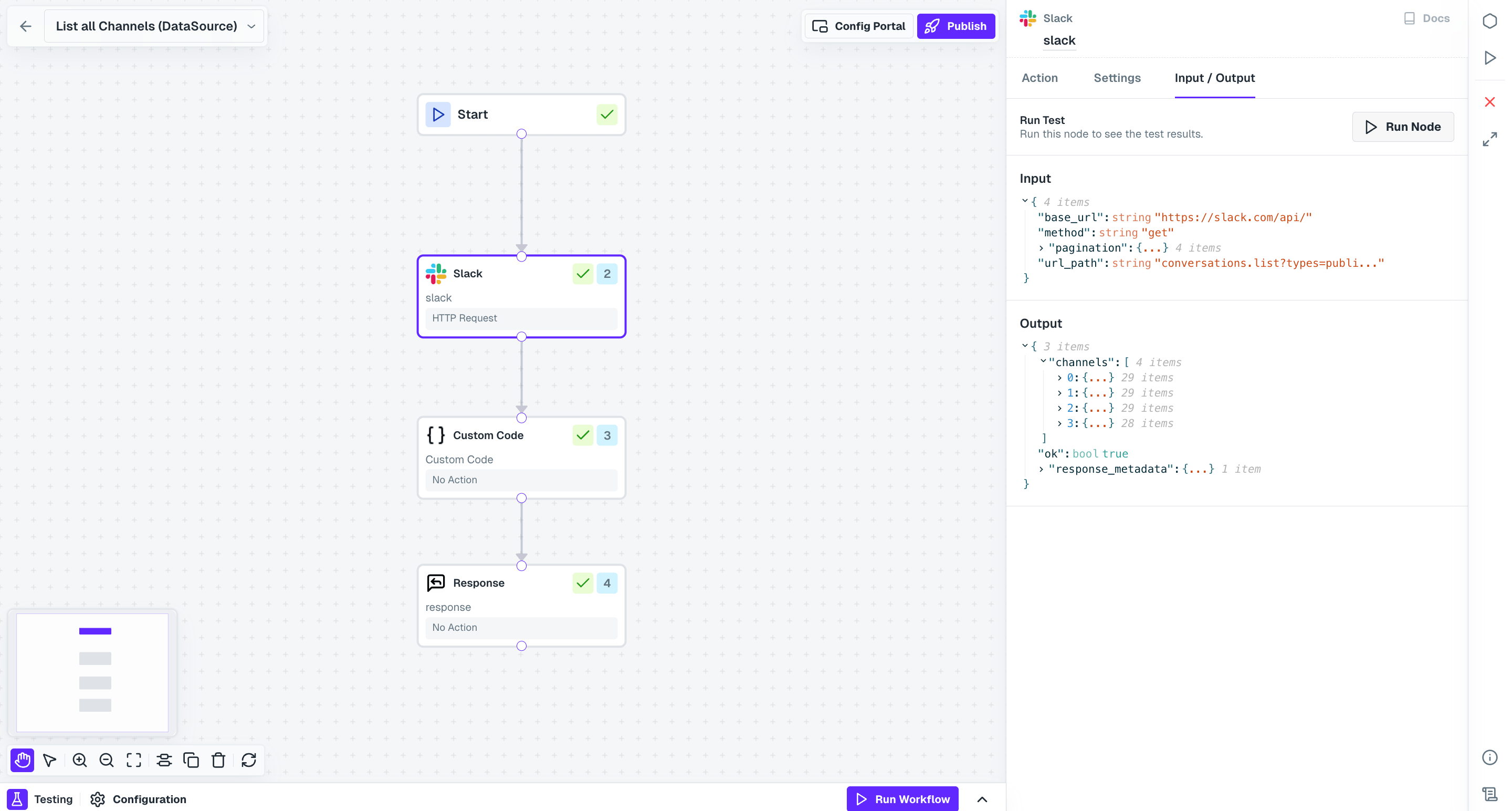 Once the node executes successfully, a checkmark appears on the node, indicating it has been tested.
#### Testing Entire Workflow
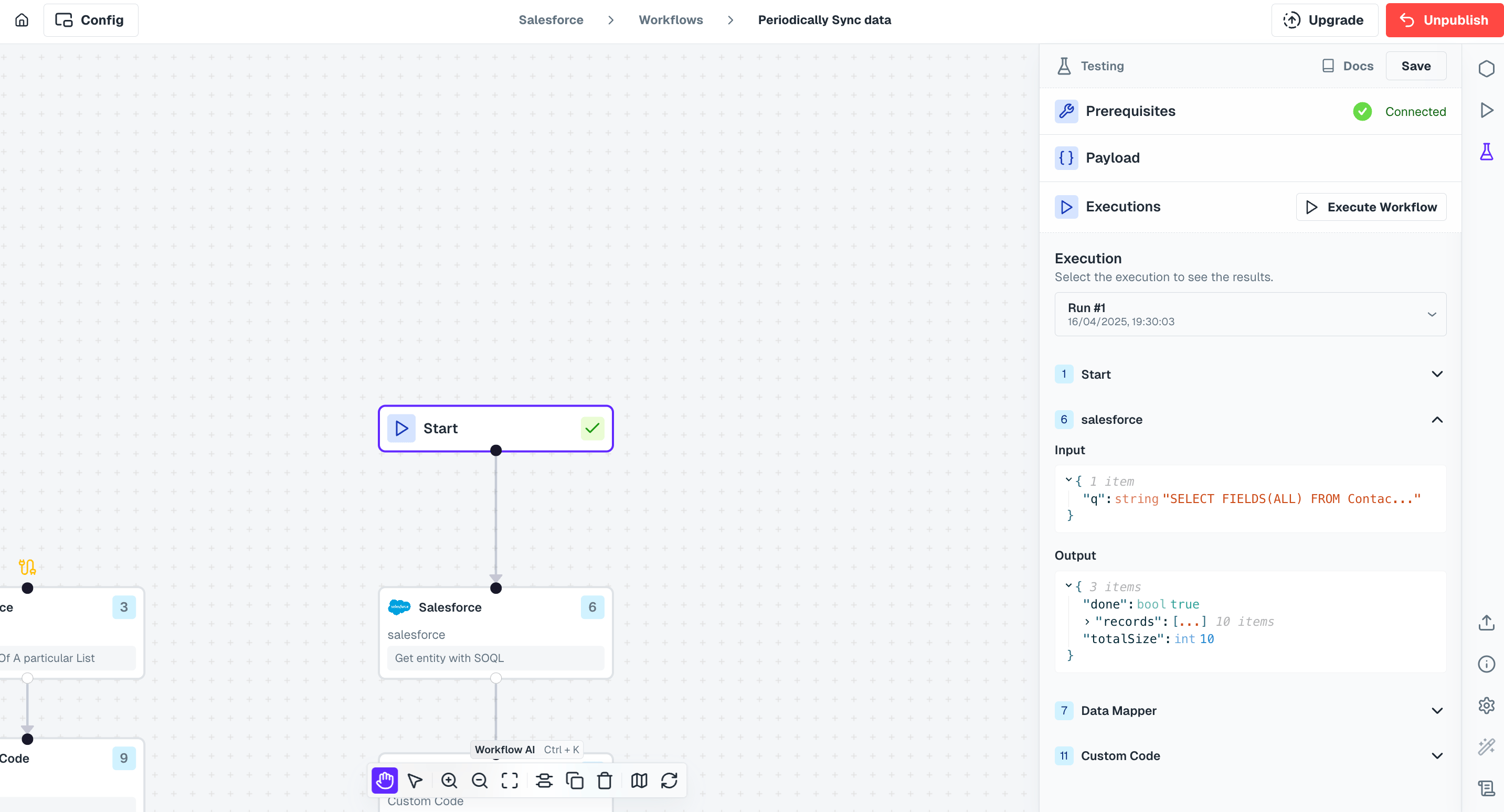
Open the testing modal present at the bottom and switch from the `Node` tab to the `Workflow` tab.
Click on `Run Workflow` button to perform a test execution and a **Test Run** log is generated with output of each node.
Since testing for Group nodes is not supported currently, you might not receive the logs of the group node.
Once the node executes successfully, a checkmark appears on the node, indicating it has been tested.
#### Testing Entire Workflow
Open the testing modal present at the bottom and switch from the `Node` tab to the `Workflow` tab.
Click on `Run Workflow` button to perform a test execution and a **Test Run** log is generated with output of each node.
Since testing for Group nodes is not supported currently, you might not receive the logs of the group node.
 ## Workflow Templating
In Refold workflows, you can use dynamic variables generated through **Run Node** test execution to seamlessly access data from previous nodes. This method allows you to incorporate tested node response data into subsequent nodes.
To learn more about how to do Templating in Refold, refer to the docs [here](/legacy/concepts/workflow/templating).
Simply go to input field where you want to use variable within a node, select **Nodes** tab from the `Insert Variable` modal, choose the node whose response you want to access and select the field from that node response.
## Workflow Templating
In Refold workflows, you can use dynamic variables generated through **Run Node** test execution to seamlessly access data from previous nodes. This method allows you to incorporate tested node response data into subsequent nodes.
To learn more about how to do Templating in Refold, refer to the docs [here](/legacy/concepts/workflow/templating).
Simply go to input field where you want to use variable within a node, select **Nodes** tab from the `Insert Variable` modal, choose the node whose response you want to access and select the field from that node response.
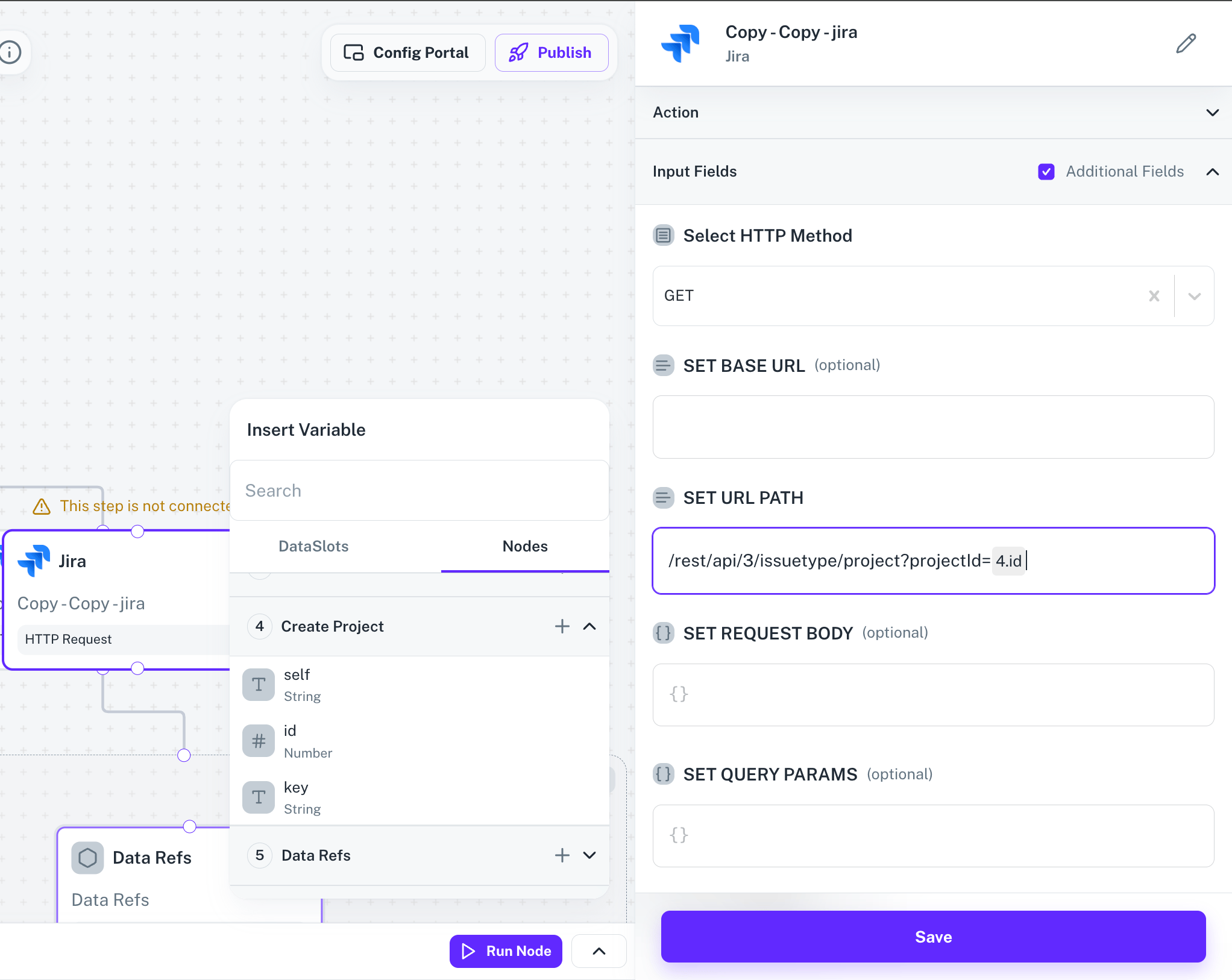 In this example, we used the `id` received in the response when project was created and it's visible as `4.id` in the field which is of the format `.`.
This streamlined approach of Workflow Testing ensures that your workflows perform as expected before deploying them in production.
In this example, we used the `id` received in the response when project was created and it's visible as `4.id` in the field which is of the format `.`.
This streamlined approach of Workflow Testing ensures that your workflows perform as expected before deploying them in production.